Pos Automation - Validate Pos Sign On
Overview
This tutorial will guide you how to automate the basic POS Sign On Feature
What you will learn
How to use the following steps
Pre-requisites
Should have a POS Setup and Automation Workspace Setup
Exercises
Add Automation Script File
Right click on the Automated Tests project and create a new package in the test folder, feature.retail.pos.tutorials.signOn
Make sure your package is registered in the testNG.xml
Right click on the package and create a new cucumber test PosSignOn.feature
Add the Steps
-
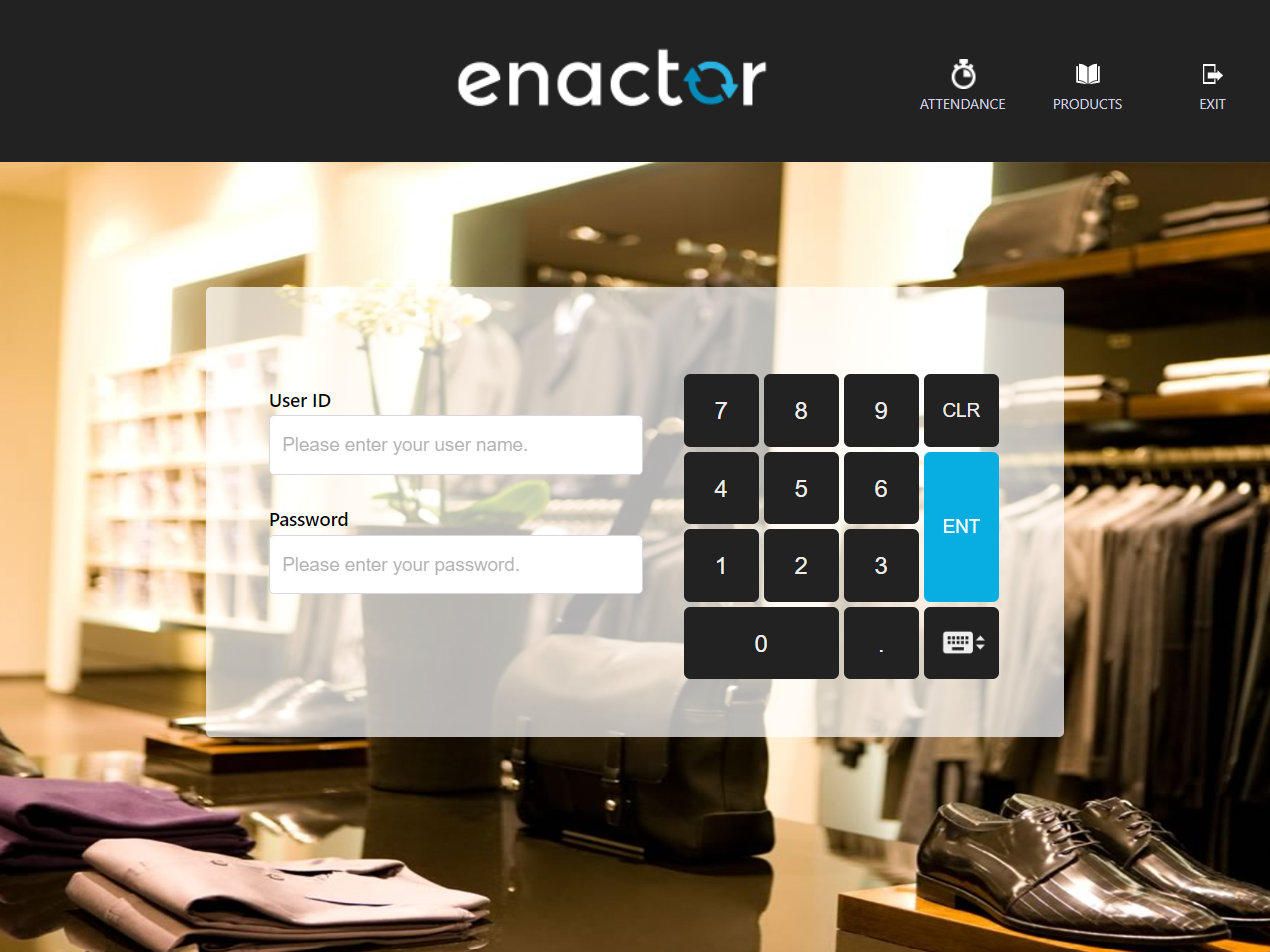
Find the window id of the Sign on Screen (Refer Window Inspection).
-
Add Window entry to the
.propertiesfile ( Refer Window Details to set up Client Property file).
your entry would be like
WINDOW_ENTER_USER=Point-of-Sale Application:Point-of-Sale Application:Enter User Pos/SignOn/SignOn EnterUserState NextGen1024x768/Pos/SignOn/EnterUser
-
With the above entry, you can refer this page as "Enter User" in the feature file.
-
Now, find the component IDs for the Username and Password text fileds. (Refer Component Inspection).
-
Add the component entries to
.propertiesfile ( Refer Component Details to set up Client Property file).
your entries would be like
COMPONENT_USER_NAME_TEXT=INPUT_TEXT_1
COMPONENT_PASSWORD_TEXT=INPUT_TEXT_2
-
With the above entries, you can refer the text fields as "User Name Text" and "Password Text" in the feature file.
-
Then add data property entries for Sales Assistant Username and Sales Assistant Password in the data property file. Refer Data property File
your entries would be like
SALES_ASSISTANT_USERNAME=000102
SALES_ASSISTANT_PASSWORD=000102
- Finally, Your feature file would be like ,
Scenario: Sign on with a valid user id and password
    Given "Enter User" page is shown
    When user enters "${Sales Assistant Username}" into "User Name Text" field
    And user enters "${Sales Assistant Password}" into "Password Text" field
    And user presses "ENT" button
    Then "Transaction Basket" page is shown
    When user presses "Sign Off" button
    Then "Enter User" page is shown
- Your client properties file entries would be like,
COMPONENT_USER_NAME_TEXT=INPUT_TEXT_1
COMPONENT_PASSWORD_TEXT=INPUT_TEXT_2

WINDOW_ENTER_USER=Point-of-Sale Application:Point-of-Sale Application:Enter User Pos/SignOn/SignOn EnterUserState NextGen1024x768/Pos/SignOn/EnterUser
WINDOW_TRANSACTION_BASKET=Point-of-Sale Application:Point-of-Sale Application:Sale  Pos/Sale/Sale  SignedOnState  NextGen1024x768/Pos/Sale/Sale
- Your data properties file entries would be like,
SALES_ASSISTANT_USERNAME=000102
SALES_ASSISTANT_PASSWORD=000102