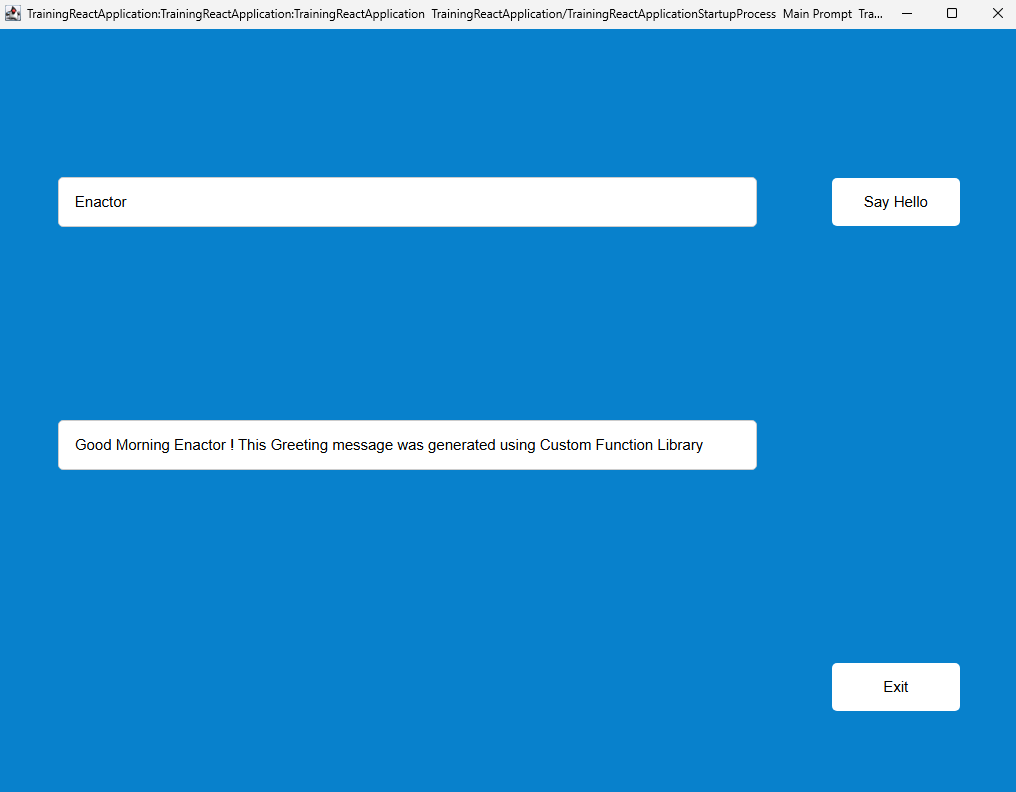
Custom Function Library
Overview
What you will learn
- How to create a Custom Function Library
Pre-requisite
Exercises
Create the Function Library Class
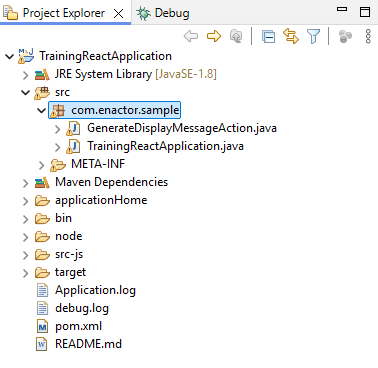
Go to the Project Explorer view and expand the TrainingReactApplication project.
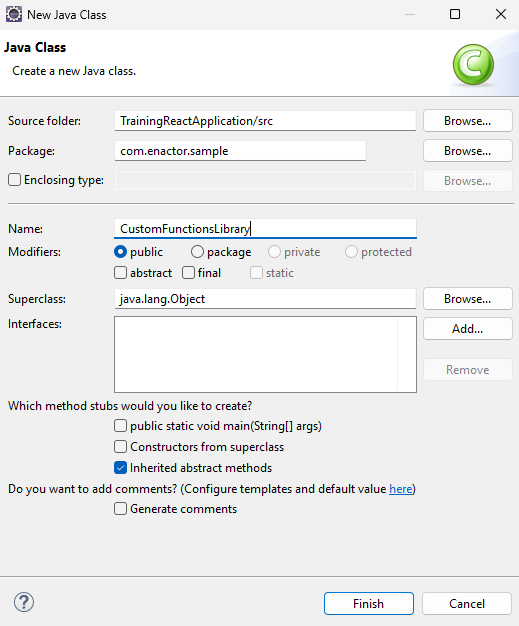
Navigate to src > com.enactor.sample, then right-click on the package, select New > Class, and create a new Java class with ClassName CustomFunctionsLibrary
We can implement a custom library to generate a context-aware greeting message based on the current time of day. Below is a sample library class implementation.
package com.enactor.sample;

import com.enactor.core.el.StaticMethodsFunctionMapper;
import com.enactor.core.utilities.ParameterNames;

/**
 * Example EL Functions Library
 *
 */
public class CustomFunctionsLibrary extends StaticMethodsFunctionMapper {

	@ParameterNames({"name"})
	public static String timeGreeting(String name) {

	    int hour = java.time.LocalTime.now().getHour();

	    String greeting;

	    if (hour < 12)
	        greeting = "Good Morning";
	    else if (hour < 18)
	        greeting = "Good Afternoon";
	    else
	        greeting = "Good Evening";

	    return greeting + " " + name + " !";
	}
}
Add Function Library to Enactor Tools
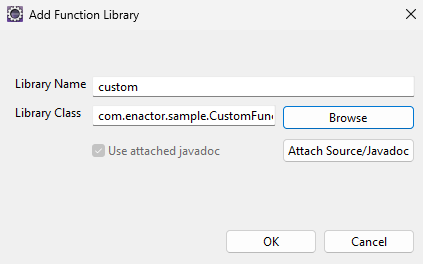
To add this function library to Enactor Tools, go to Window -> Preferences -> Enactor Development -> Editor Preferences -> Function Libraries and click Add.
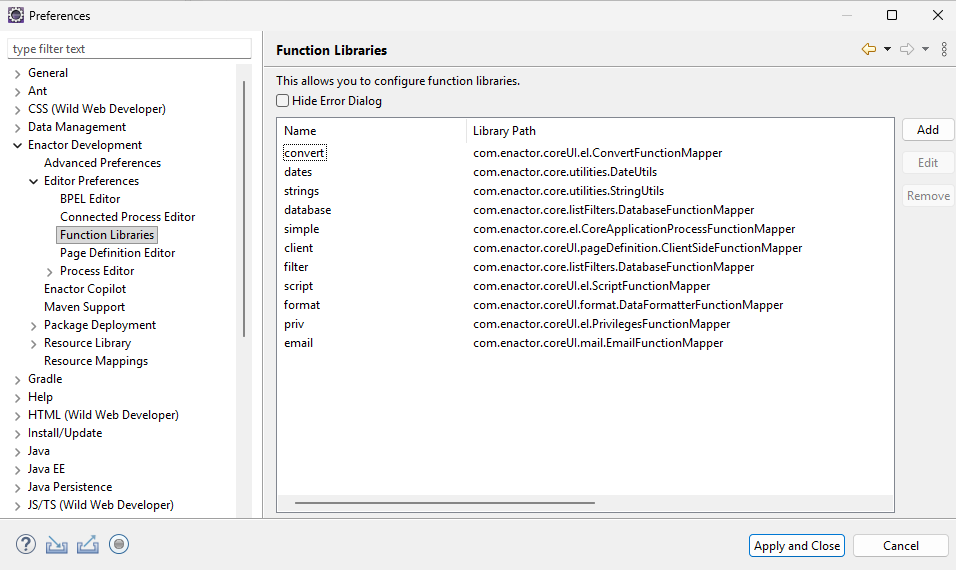
In the Add Function Library window, enter the library name as custom and browse to select the CustomFunctionsLibrary class you created. Once selected, click OK to complete the setup.
Use the new Function Library
Packages.xml Changes
In the Project Explorer view, expand the TrainingReactApplication project.
Navigate to src > META-INF > Packages.xml and open it using the Packages Editor.
Then, switch to the Function Mapper tab.
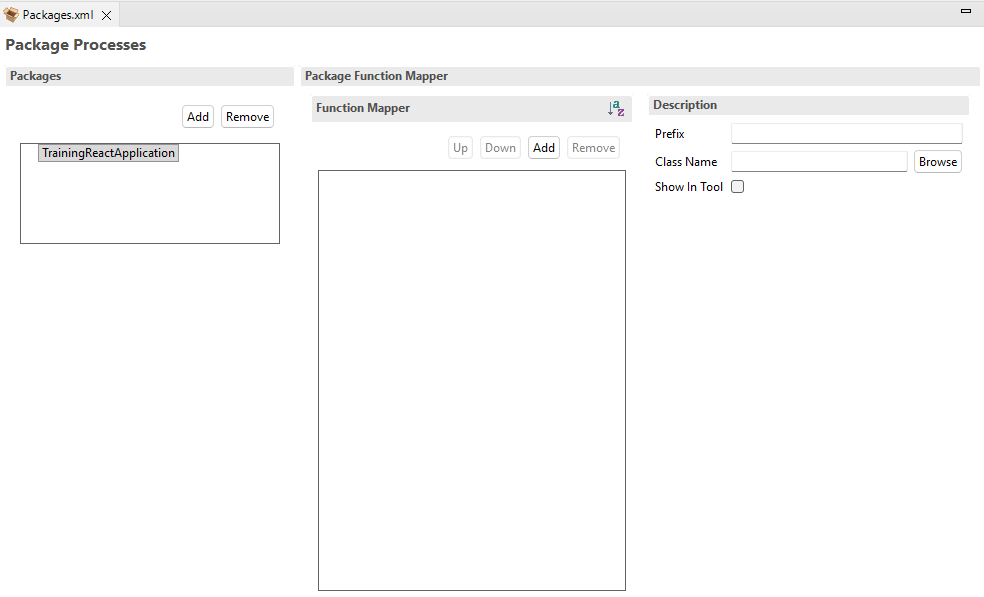
Click Add to create a new Function Mapper and browse to select the CustomFunctionsLibrary class.
In the Description section, set the Prefix to custom. Ensure Show in Tool is checked.
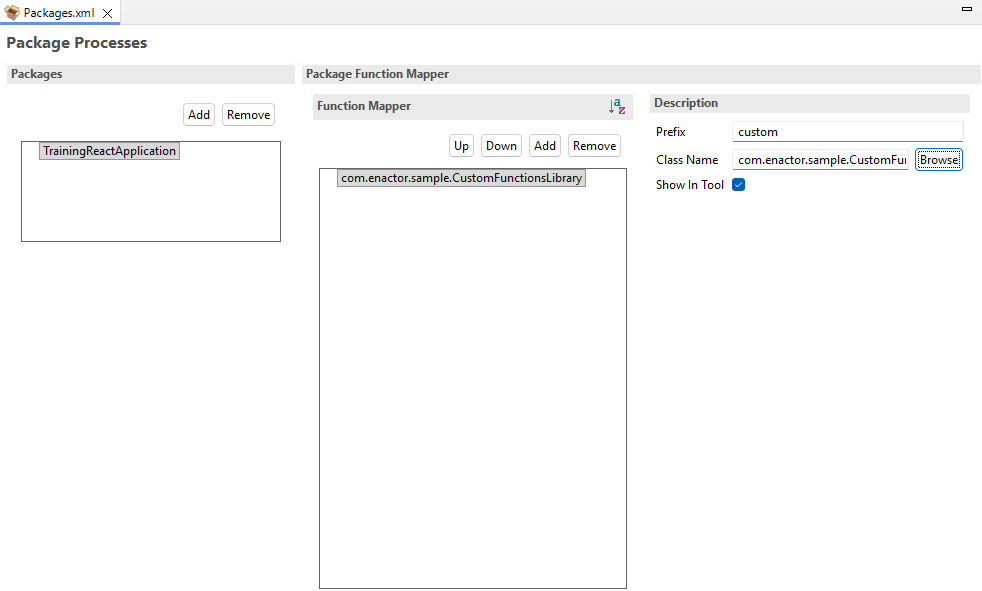
Finally, save the changes to Packages.xml.
Application Process Changes
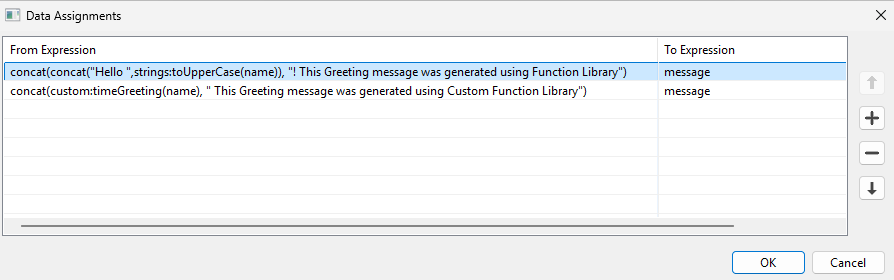
Open the previously created TrainingReactApplicationExtendedProcess in the Application Process Editor. Then, double-click on AssignDisplayMessageAction to open the Data Assignemnts window.
Then, double-click the From Expression field to open the Configure Expression dialog. Here, expand Functions. Under it, you should see Custom Functions. When you expand it, the newly added timeGreeting function should be available.
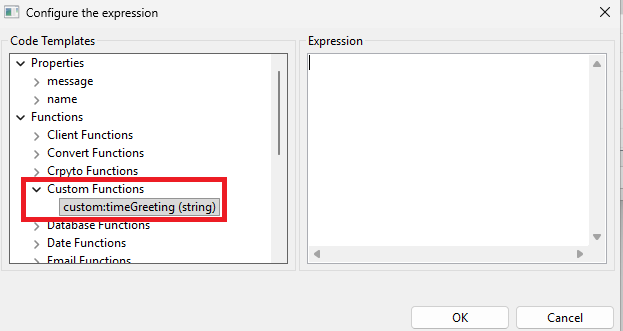
Add a new Data Assignment as shown below to use the newly created Custom Library.
Recall how the Function Library was used with Application Processes in the Function Library Tutorial
From Expression
concat(custom:timeGreeting(name), " This Greeting message was generated using Custom Function Library")
To Expression
message
Run the Application
Recall how the Hello World application was run earlier and relaunch it to see new Action changes.