Function Library
Function Library is a Class, the Functions it contains are Public Static Methods of the class, which must not be Overloaded and must derive from the Enactor base class.
The Functions in the Library may receive arguments and return values of any declared type and may be part of a larger EL expression or supplied as an argument to another function. However, where properties supply arguments or receive return values, they must meet the requirements for Expression Language Data Binding as discussed in section Expression Language Data Binding in Enactor.
Overview
What you will learn
- How to use Enactor Function Library
Pre-requisite
Exercises
Add a new Assign Action to Application Process
Open Previously created TrainingReactApplicationExtendedProcess Application Process using the Application Process Editor.
Go to Process Editor Palette, Expand Actions, Drag and Drop Assign Action to Process Editor
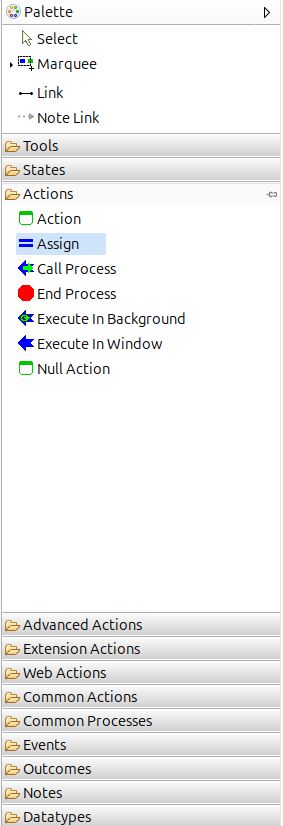
Right-click the Action and select Show Properties. Then update the following properties.
| Property | Value |
|---|---|
| Action ID | AssignDisplayMessageAction |
| Inputs | Name [java.lang.String] |
| Outputs | Message [java.lang.String] |
You can also double-click the Action in different Action Sections on the editor to edit Inputs and Outputs
You can also drag and drop Inputs ,Outputs from Process State Data
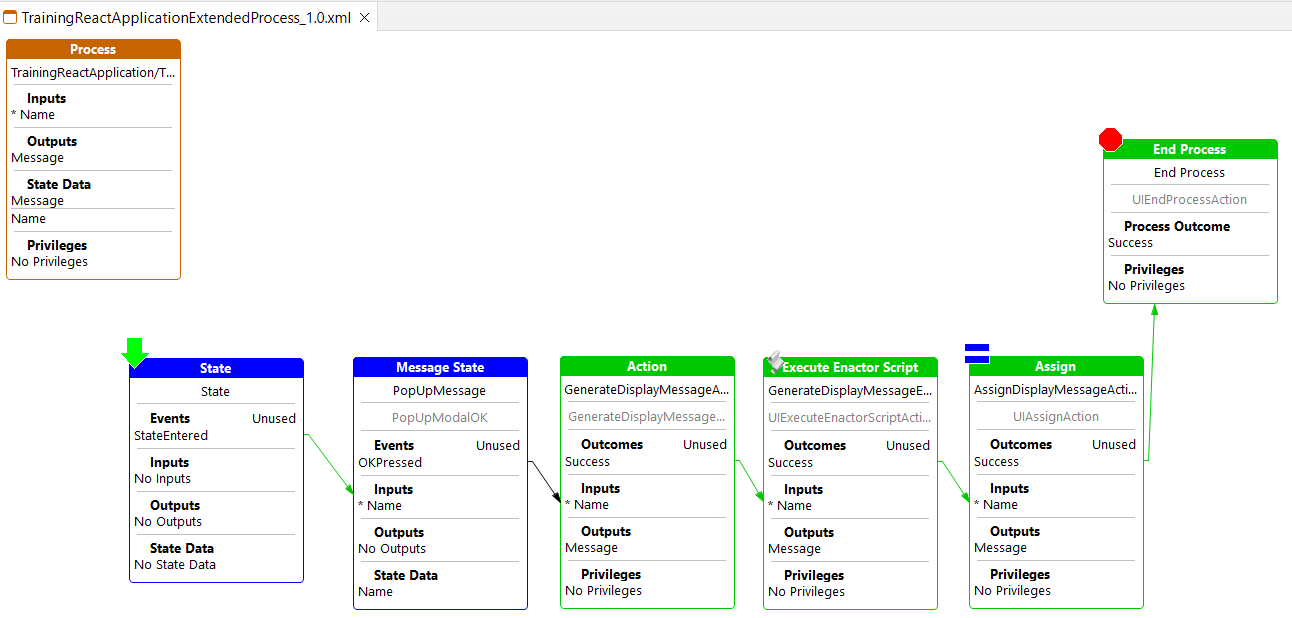
Link the Success Outcome of the GenerateDisplayMessageEnactorScriptAction to AssignDisplayMessage Action. Select Link from the Palette and link Sucess Outcome of the AssignDisplayMessage Action to the End Process Action.
Save the Process Changes.
After Above Changes your Applicaion Process should look like below.
Use Function Library
Double-click on the Assign Action to open Data Assignments Dialog. Then double-click the From Expression field to open the Configure Expression dialog.
Expand Functions to view all available function libraries under Functions Dropdown
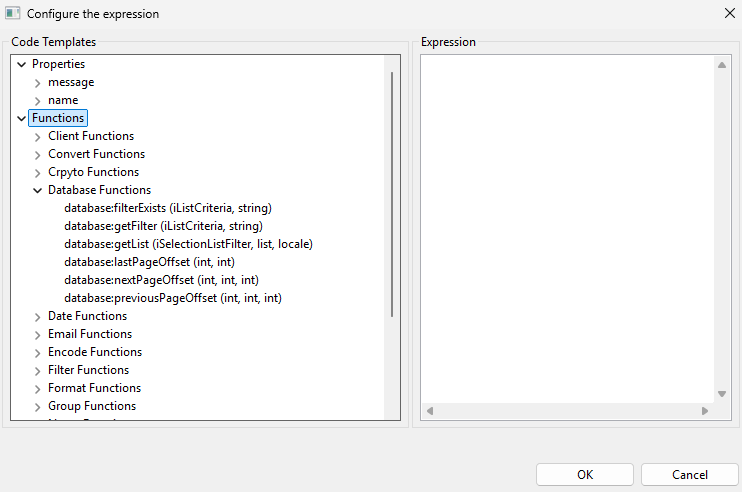
Expand Simple Functions, then double-click concat(object, object) to insert the function into the Expression Editor.
You can insert properties by double-clicking the required property names in the Properties drop-down.
Next, expand String Functions and double-click strings:toUpperCase(String s) to add the function to the Expression Editor.
You can then create an expression similar to the example below to display the name in uppercase within the greeting message.
concat(concat("Hello ",strings:toUpperCase(name)), "! This Greeting message was generated using Function Library")
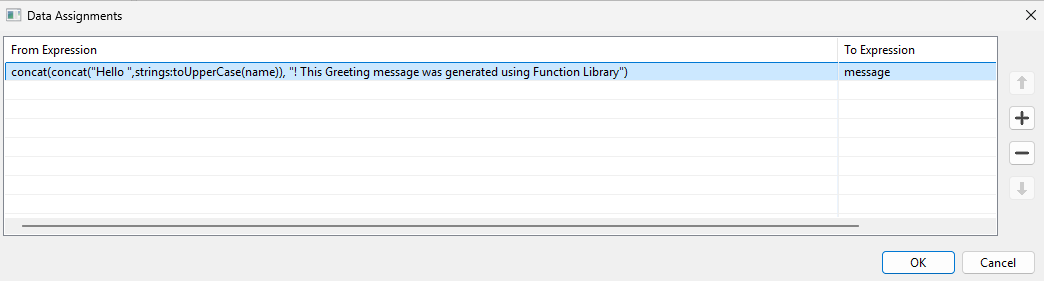
Click OK when you have configured the From Expression
Then Double click on the To Expression and Add message property as the expression value
Click OK
Save the Process Changes.
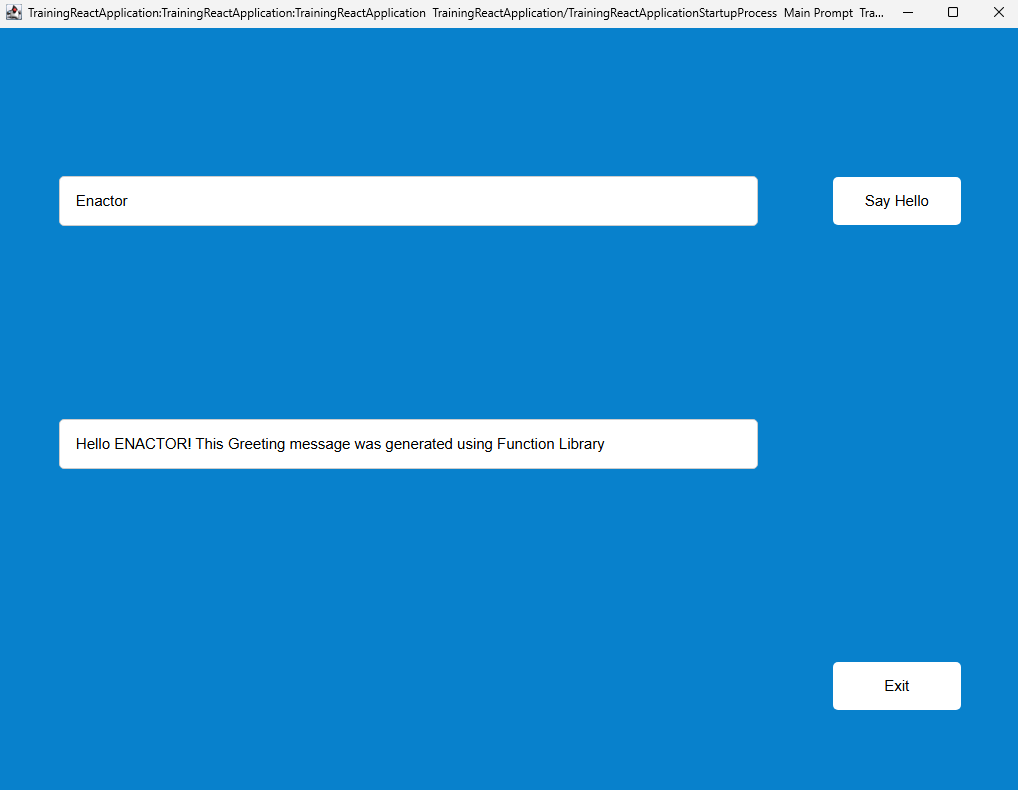
Run the Application
Recall how the Hello World application was run earlier and relaunch it to see new Action changes.
Further Reading
- We can also use Function Library with Enactor Scripts. Refer Enactor Scripts for more information.
- For the full list of standard function libraries and every method they expose, see Expression Function Libraries.