Java Action
Overview
The Action Element of a Process represents function in the Process Flow and encapsulates a Stateless Java Class (i.e. Stateless in that it may contain static final constants but contain no instance variables).
These classes have an execute() method to which the Runtime Framework passes the Input Data Items specified in the Action and delivers data returned by the method to the Output Data Items specified in the Action. The execute() method may also generate an Outcome, which is also returned to the Action.
In this tutorial, you will add a new Action to an existing Application Process.
What you will learn
- How to create a new Action.
Pre-requisite
Exercises
Add a new Java Action to Application Process
Open Previously created TrainingReactApplicationExtendedProcess Application Process using the Application Process Editor.
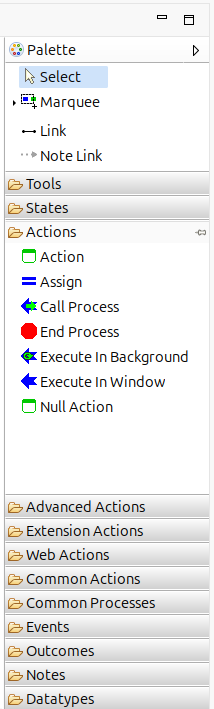
Go to Process Editor Palette, Expand Actions, Drag and Drop Action to Process Editor
Right-click the Action and select Show Properties. Then update the following properties.
| Property | Value | Type |
|---|---|---|
| Action ID | GenerateDisplayMessageAction | |
| ClassName | com.enactor.sample.GenerateDisplayMessageAction | |
| Inputs | Name | java.lang.String |
| Outcomes | Success | |
| Outputs | Message | java.lang.String |
You can also double-click the Action in different Action Sections on the editor to edit Inputs, Outcomes, and Outputs
You can also drag and drop Inputs ,Outputs from Process State Data
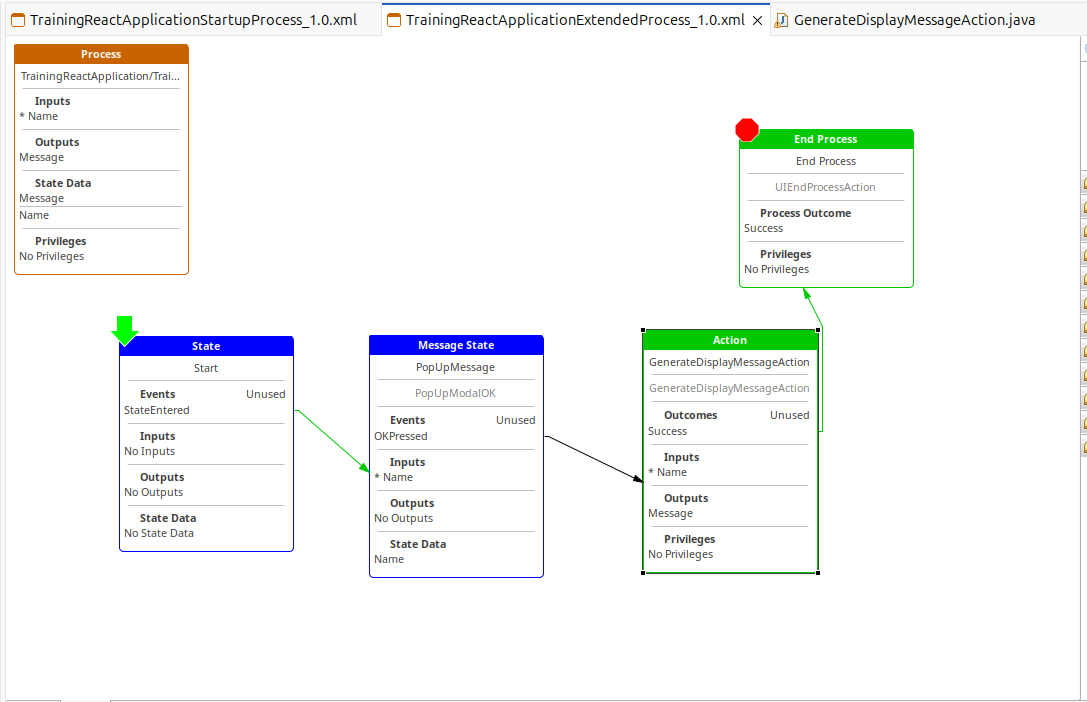
Link the OKPressed Outcome of the PopUpMessage State to GenerateDisplayMessage Action. Select Link from Palette and link Sucess Outcome of the GenerateDisplayMessageAction to the End Process Action.
Save the Process Changes.
After Above Changes your Applicaion Process should look like below.
Create the Java Action
Double Click on the Action to Implement it.

Click Yes to create the action.
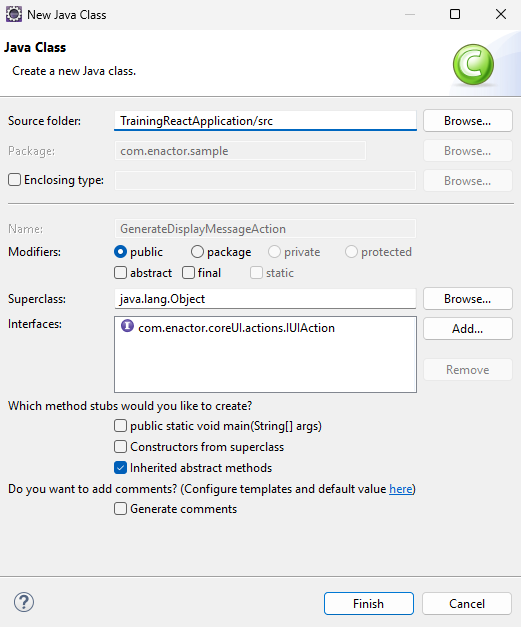
Click Finish to generate the Action.
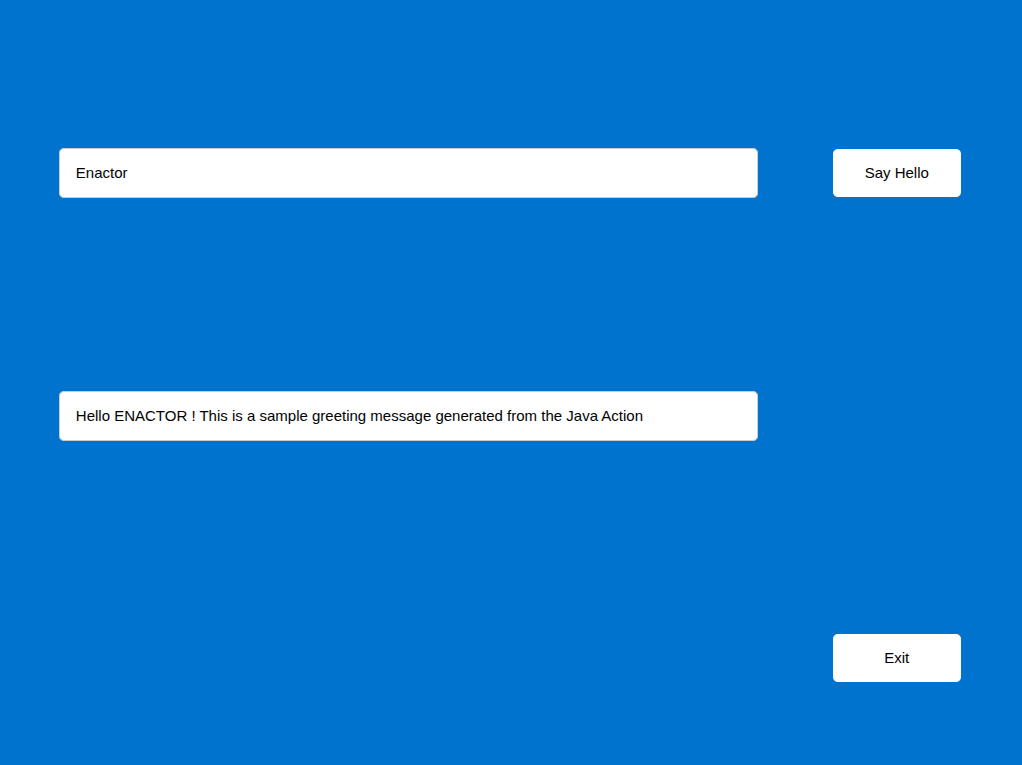
You can now implement the generated Action and add your own custom logic as required. In the example below, the given name is converted to uppercase before being displayed.
package com.enactor.sample;

import com.enactor.core.application.process.ApplicationProcessDataType;
import com.enactor.core.application.process.ApplicationProcessException;
import com.enactor.core.application.process.IApplicationProcessData;
import com.enactor.core.application.process.IApplicationProcessOutcome;
import com.enactor.core.utilities.StringUtils;
import com.enactor.coreUI.actions.IUIAction;
import com.enactor.coreUI.processes.UIProcessException;
import com.enactor.coreUI.processes.CoreUIOutcomes;
import com.enactor.coreUI.actions.UIActionFunctions;
import java.lang.String;
import com.enactor.coreUI.annotations.Inputs;
import com.enactor.coreUI.annotations.Input;
import com.enactor.coreUI.annotations.Outputs;
import com.enactor.coreUI.annotations.Output;
import com.enactor.coreUI.annotations.Outcomes;
import com.enactor.coreUI.actions.DataSessionManagementType;
import com.enactor.coreUI.annotations.SessionManagement;

@Inputs({ @Input(name = "Name", type = java.lang.String.class, required = true) })
@Outputs({ @Output(name = "Message", type = java.lang.String.class) })
@Outcomes({ "Success" })
public class GenerateDisplayMessageAction implements IUIAction {

	/** Default Serial Version */
	private static final long serialVersionUID = 1L;

	public static final String MESSAGE_DATA_NAME = "Message";
	public static final ApplicationProcessDataType MESSAGE_DATA = new ApplicationProcessDataType(MESSAGE_DATA_NAME,
			String.class.getName());

	@Override
	public IApplicationProcessOutcome execute(IApplicationProcessData inputData, IApplicationProcessData outputData)
			throws ApplicationProcessException {

		String name = UIActionFunctions.getRequiredDataItem(inputData, "Name");

		String message = "Hello " + StringUtils.toUpperCase(name)+ " ! This is a sample greeting message generated from the Java Action";
		outputData.setData(MESSAGE_DATA, message);
		return CoreUIOutcomes.SUCCESS_OUTCOME;
	}
}
Save the Action Changes.
Run the Application
Recall how the Hello World application was run earlier and relaunch it to see new Java Action changes.
Further Reading
Refer Actions