Load Entity
Overview
This tutorial explains how to create an entity key and then load an entity using that entity key.
What You Will Learn
- How to create an entity key.
- How to load an entity using the created entity key.
- How to display loaded entity data in a message state.
Prerequisites
- You must have followed the steps detailed in POS Extension Tutorial
Activity
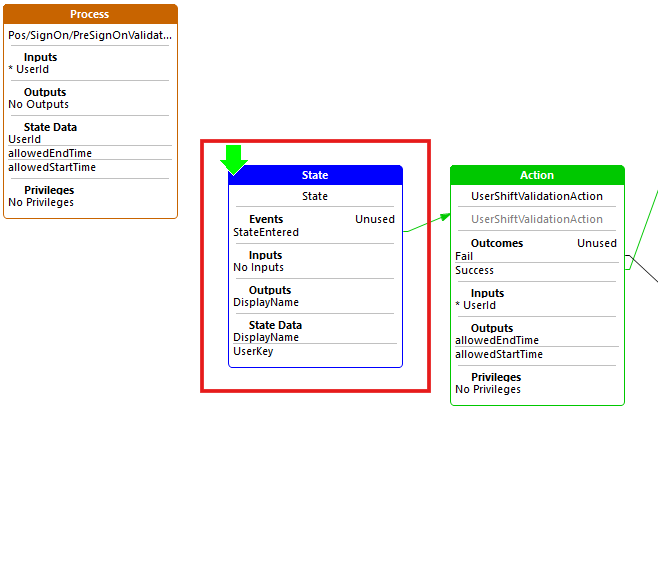
Open previously generated Pos/SignOn/PreSignOnValidationExtensionImplementation Application Process using the Application Process Editor
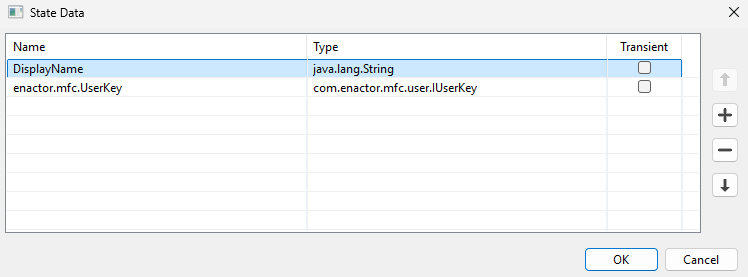
Add state data to the State enactor.mfc.UserKey with the type com.enactor.mfc.user.IUserKey and DisplayName with the type java.lang.String.
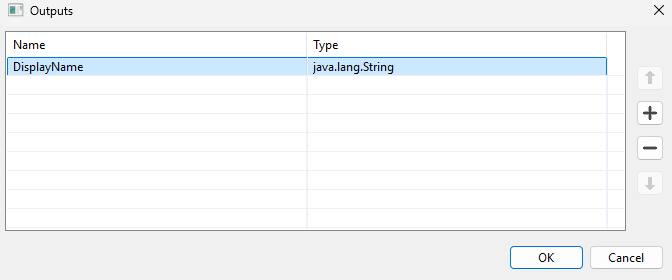
Add output data for the State DisplayName with the type java.lang.String.
Create an Entity Key
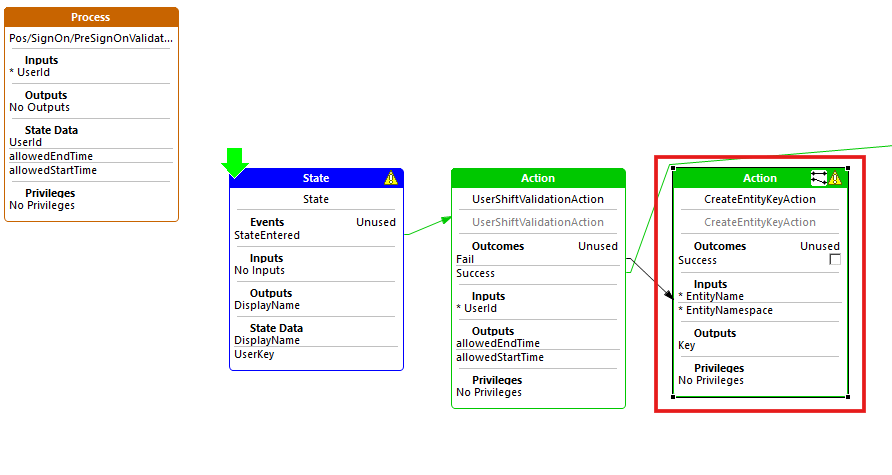
Open the Resource Library view and search for the action CreateEntityKeyAction.

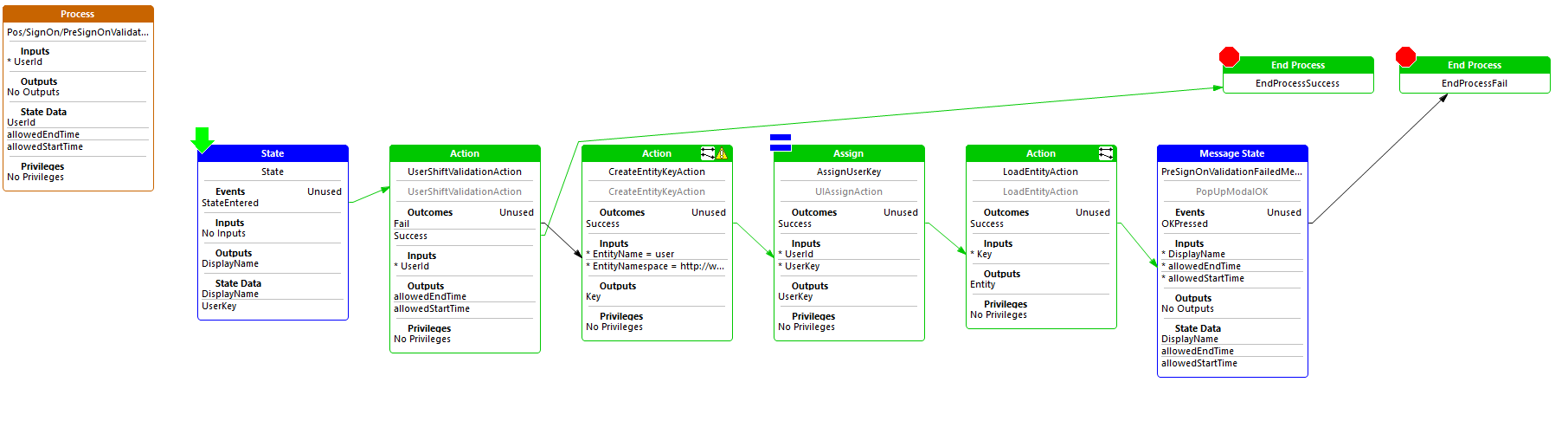
Add the CreateEntityKeyAction action to the application process and route the Fail link from the UserShiftValidationAction to it.
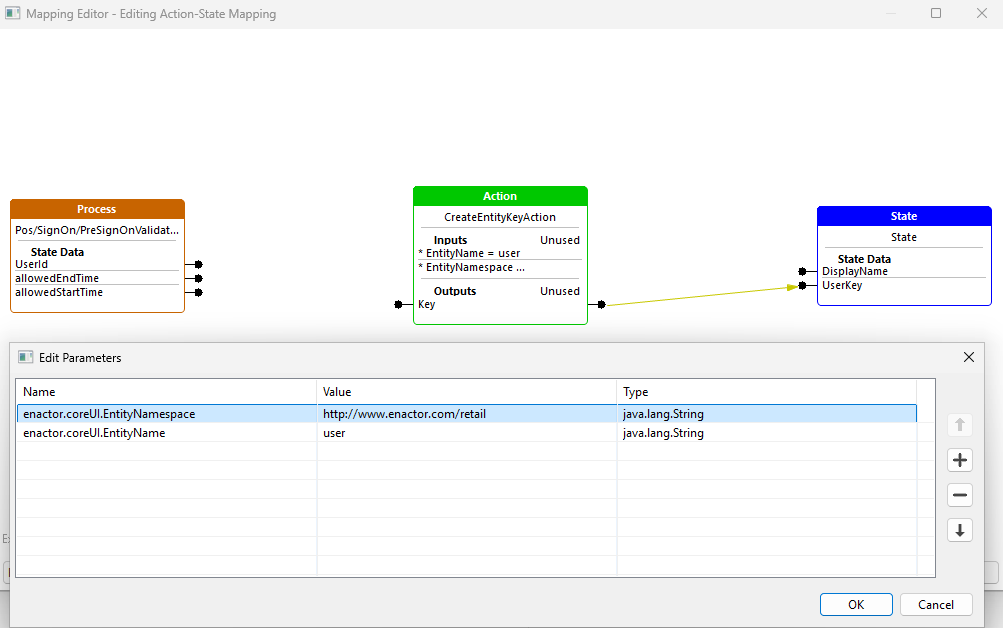
Edit the parameters as follows:
| Name | Value | Type |
|---|---|---|
| enactor.coreUI.EntityName | user | java.lang.String |
| enactor.coreUI.EntityNamespace | http://www.enactor.com/retail | java.lang.String |
Map the output Key to UserKey.
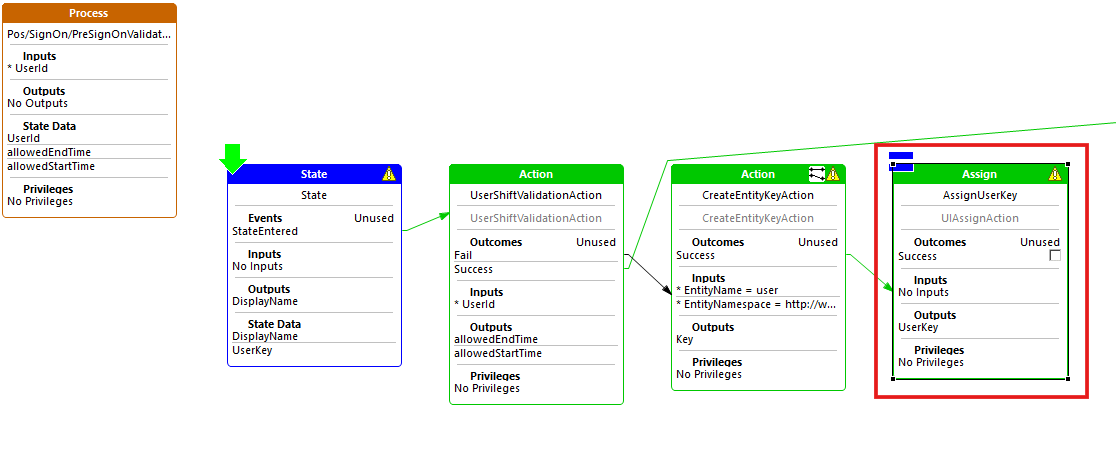
Add a new assign action named AssignUserKey, and route the Success outcome from the CreateEntityKeyAction to this action.
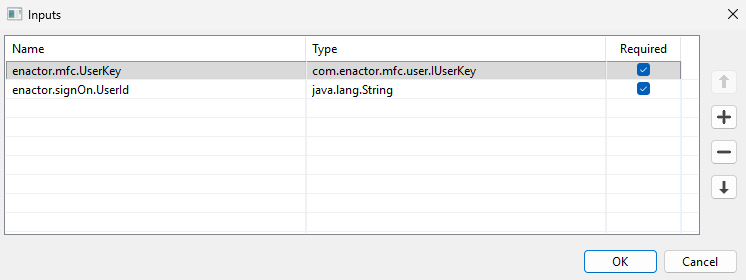
Add the input enactor.mfc.UserKey with the type com.enactor.mfc.user.IUserKey and enactor.signOn.UserId with the type java.lang.String.
Add the output enactor.mfc.UserKey with the type com.enactor.mfc.user.IUserKey.
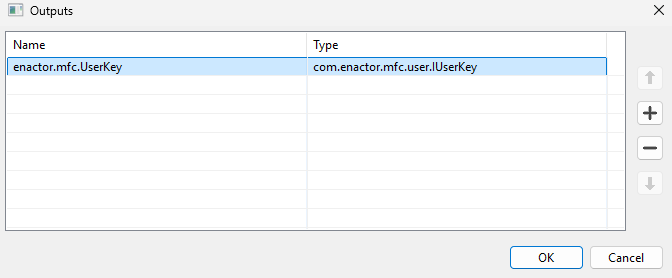
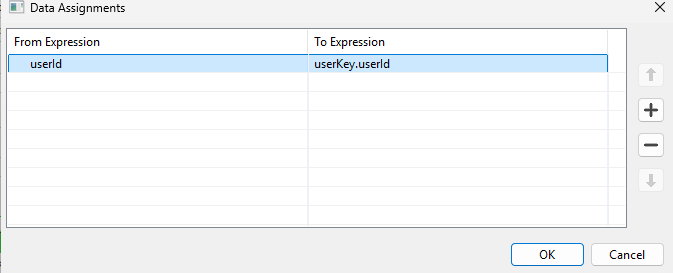
Add the data assignment with:
- From Expression: userId
- To Expression: userKey.userId
Load the Entity Using the Entity Key
Open the Resource Library view and search for the action LoadEntityAction.
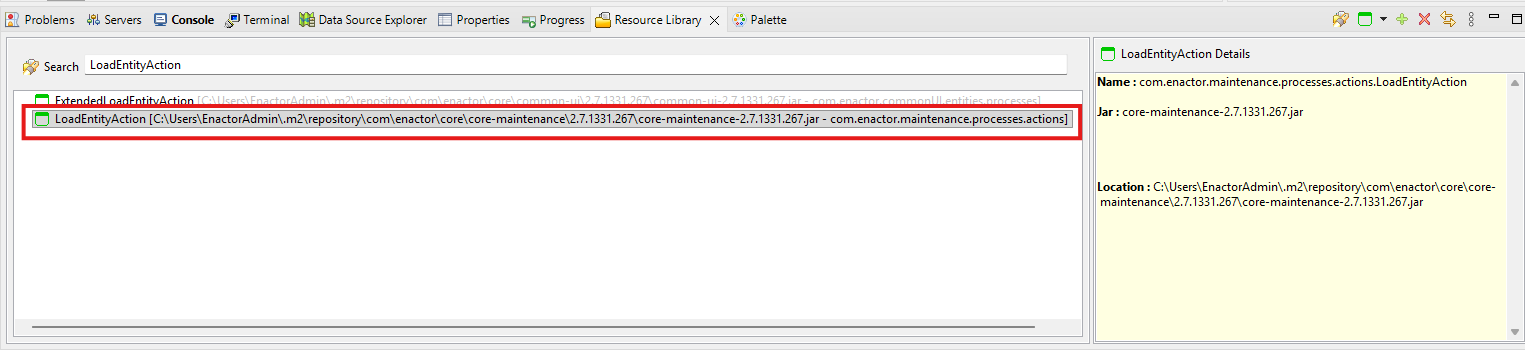
Add the LoadEntityAction action to the application process and route the Success link from the AssignUserKey to it.
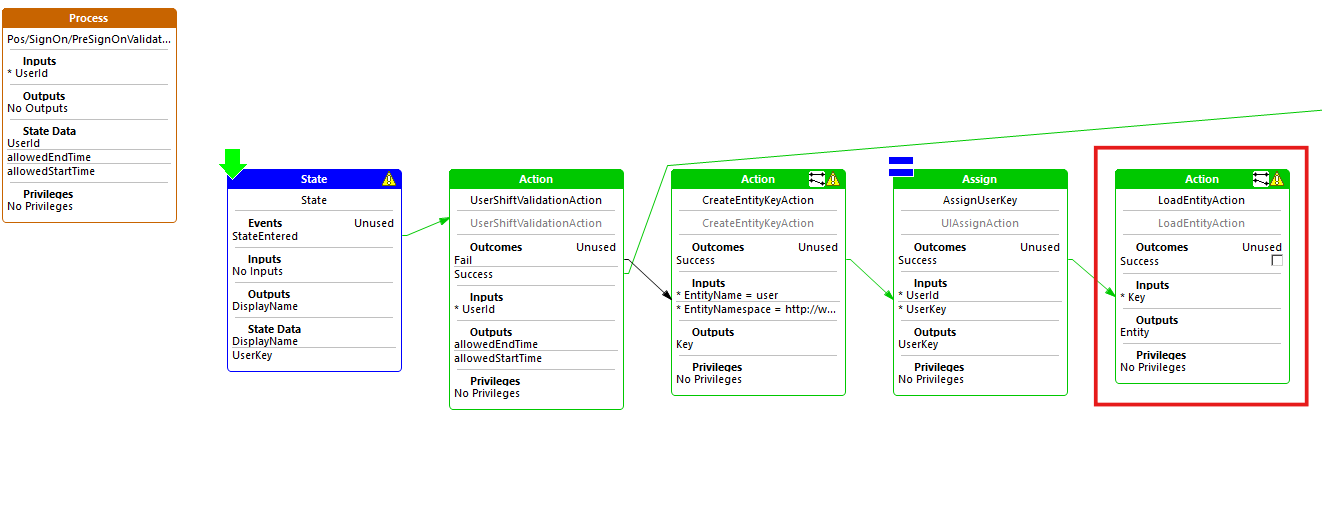
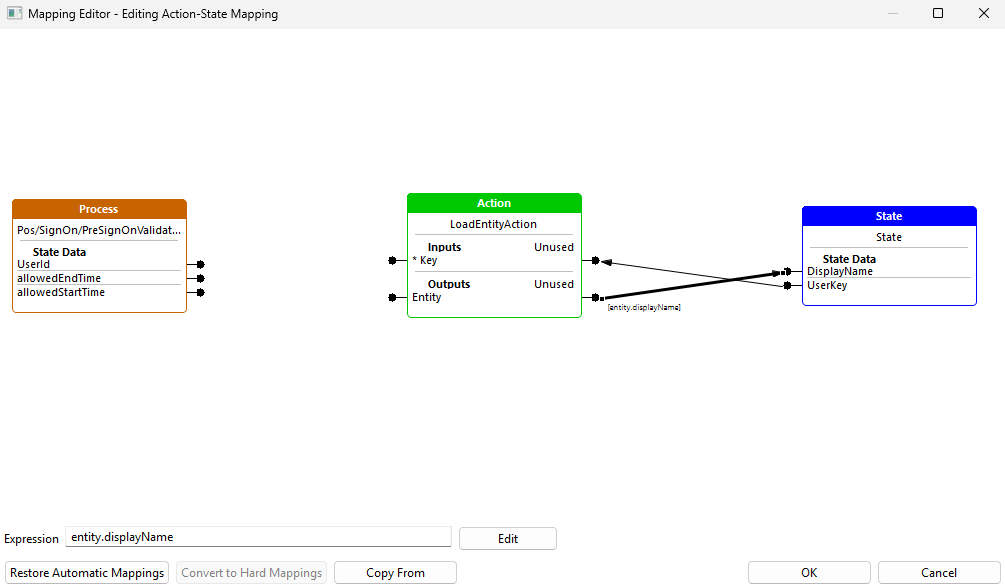
Map the UserKey to the Key as input and map the output Entity to DisplayName as entity.displayName.
Display Messages from the Loaded Entity
Add the input as DisplayName in PreSignOnValidationFailedMessage State.

Add the Success from the LoadEntityAction to the PreSignOnValidationFailedMessage State.
Update the message for the key ShiftRestrictionMessage text as Access Denied: {displayName}..!! You can sign on only between {allowedStartTime} and {allowedEndTime}. Please try again during your shift. in TrainingPOSExtensionMessages.xml.

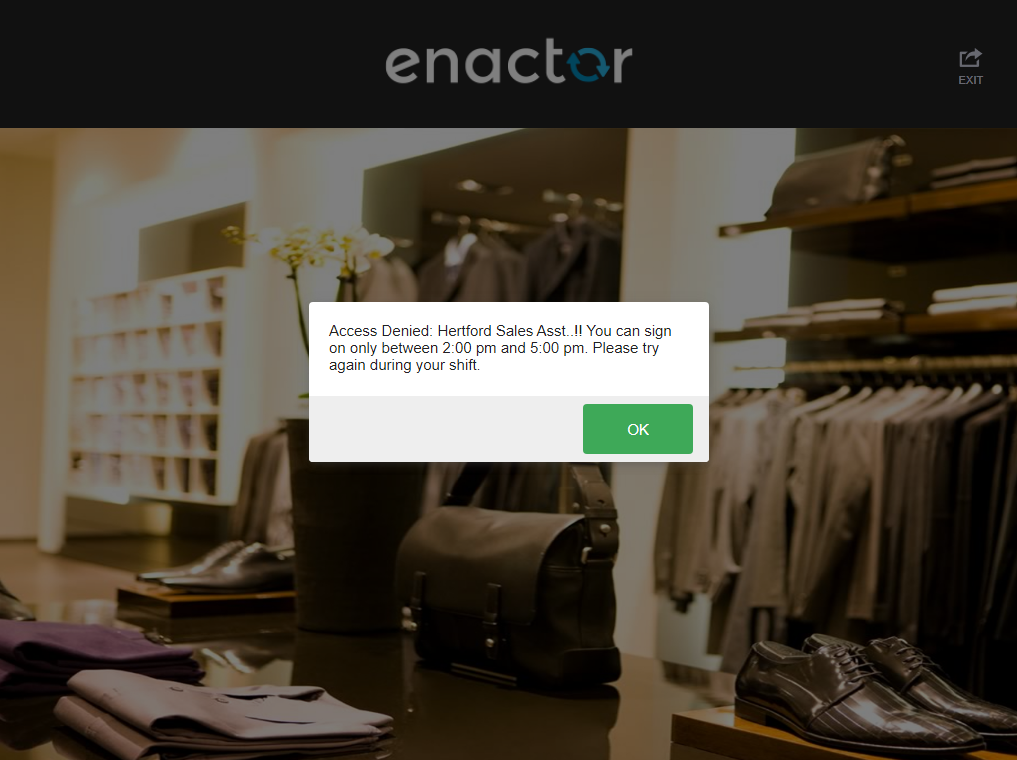
Expected output when logging in with user 000102: