POS Extension Tutorial
Overview
This tutorial guides you through enhancing the Training POS Extension you have already generated which implement a PreSignOnValidationExtension.
You will learn how to enforce user-based login restrictions by validating whether a user is attempting to sign in within their allowed login time. This will be achieved by adding a custom Java Action.
Validation Rules
- Restrict sign-on for user 000102 to a predefined time window.
- Allow unrestricted sign-on for all other users.
When a restricted user attempts to sign on outside the allowed time.
- Display an appropriate validation message.
- Prevent login and return the user to the Sign-On screen.
The user login restrictions are currently hardcoded within the Java Action for simplicity. This implementation can be further enhanced by externalizing the configuration (e.g., using a configuration file or database) to make the solution more flexible and maintainable.
When testing this functionality, ensure that the configured time range includes the current system time so that you can easily observe both allowed and restricted login behavior.
What you will learn
How to enhance the generated POS Extension Implementation with toolkit knowledge matching to POS World.
Pre-requisites
Exercises
Open previously generated Pos/SignOn/PreSignOnValidationExtensionImplementation Application Process using the Application Process Editor
-
Delete PreSignOnValidationExtension Prompt State, Create Message assign action and the End Proces Action.
-
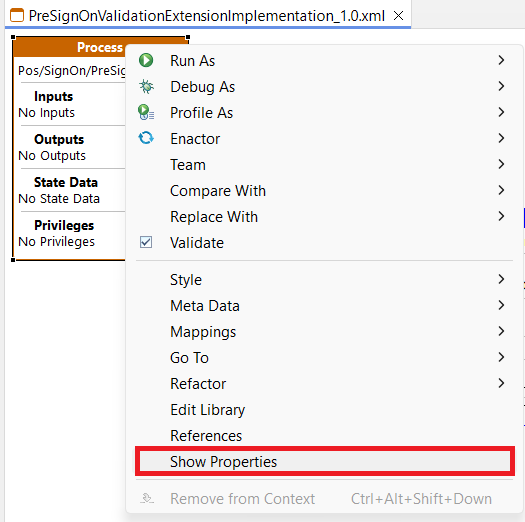
Right-click on the Process and select Show Properties. Then update the following properties.
| Property | Value |
|---|---|
| Inputs | enactor.signOn.UserId [java.lang.String] |
| State Data | enactor.signOn.UserId [java.lang.String] allowedStartTime [java.lang.String] allowedEndTime [java.lang.String] |
Add UserShiftValidationAction Action
- Go to Process Editor Palette, expand Actions, drag and drop the Action into the Process Editor.
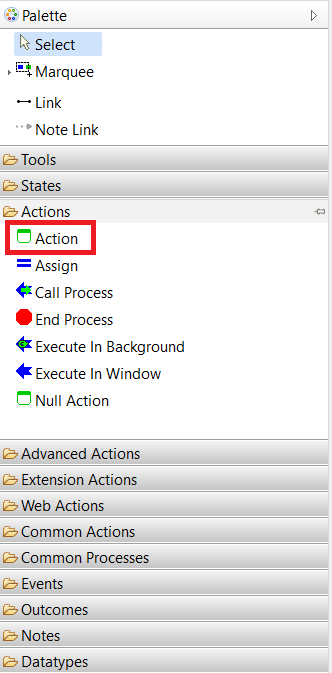
- Right-click on the Action and select Show Properties. Then update the following properties.
| Property | Value |
|---|---|
| Action ID | UserShiftValidationAction |
| Class Name | com.enactor.sample.UserShiftValidationAction |
| Inputs | enactor.signOn.UserId [java.lang.String] |
| Outputs | allowedStartTime [java.lang.String] allowedEndTime [java.lang.String] |
| Outcomes | Success, Fail |
You can also double-click the Action in different Action Sections on the editor to edit Inputs, Outcomes, and Outputs
You can also drag and drop Inputs ,Outputs from Process State Data
Add Message State
- Go to Process Editor Palette, expand States, drag and drop the Message State into the Process Editor.
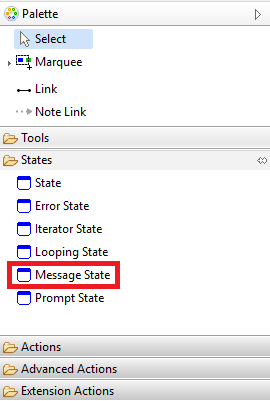
- Right-click on the Message State and select Show Properties. Then update the following properties.
| Property | Value |
|---|---|
| Name | Pre SignOn Validation Failed Message |
| State ID | PreSignOnValidationFailedMessage |
| Events | OKPressed |
| Inputs | allowedStartTime [java.lang.String] allowedEndTime [java.lang.String] |
| Message Base | TrainingPOSExtension/TrainingPOSExtensionMessages |
| Message ID | ShiftRestrictionMessage |
| URL | /Message/PopUpModalOK |
Add End Process
-
Go to the Process Editor Palette, expand Actions, and drag and drop the End Process action into the Process Editor.
-
Right-click on the End Process action and select Show Properties. Then update the following properties.
| Property | Value |
|---|---|
| Action ID | EndProcessSuccess |
| Process Outcome | Success |
-
Then right click on the End Process Action -> style -> select Keys Only.
-
Go to the Process Editor Palette, expand Actions, and drag and drop another End Process action into the Process Editor.
-
Right-click on the newly added End Process action and select Show Properties. Then update the following properties.
| Property | Value |
|---|---|
| Action ID | EndProcessFail |
| Process Outcome | Fail |
- Then right click on the EndProcessFail Action -> style -> select Keys Only.
Connect the Process Flow
Use the Link tool from the Palette and configure the flow as follows:
- Connect the StateEntered event in the Start State to the UserShiftValidationAction action.
- Connect Success outcome of
UserShiftValidationAction> EndProcessSuccess action - Connect Fail outcome of
UserShiftValidationAction> PreSignOnValidationFailedMessage Message State - Connect the OKPressed event of the PreSignOnValidationFailedMessage Message States to the EndProcessFail action.
Update Message Resource
- Add the following line to the TrainingPOSExtension/TrainingPOSExtensionMessages.xml file.
<ns2:message key="ShiftRestrictionMessage">Access Denied: You can sign on only between {allowedStartTime} and {allowedEndTime}. Please try again during your shift.</ns2:message>

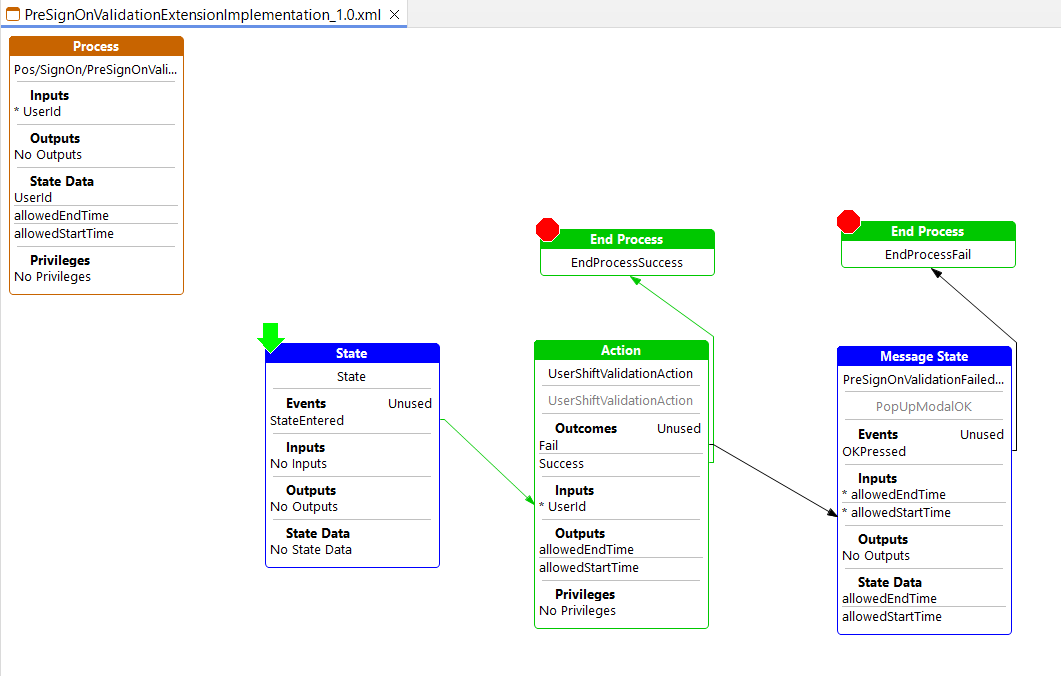
- Finally, The application Process Should be as below.
Create the Java Action
- Double Click on the UserShiftValidationAction Action to Implement it.
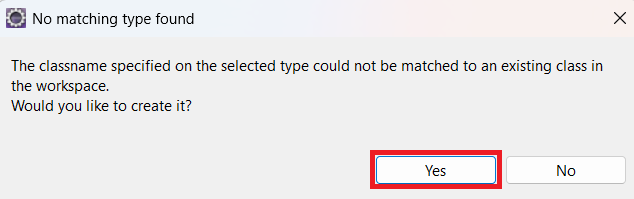
- Click Yes to create the action.
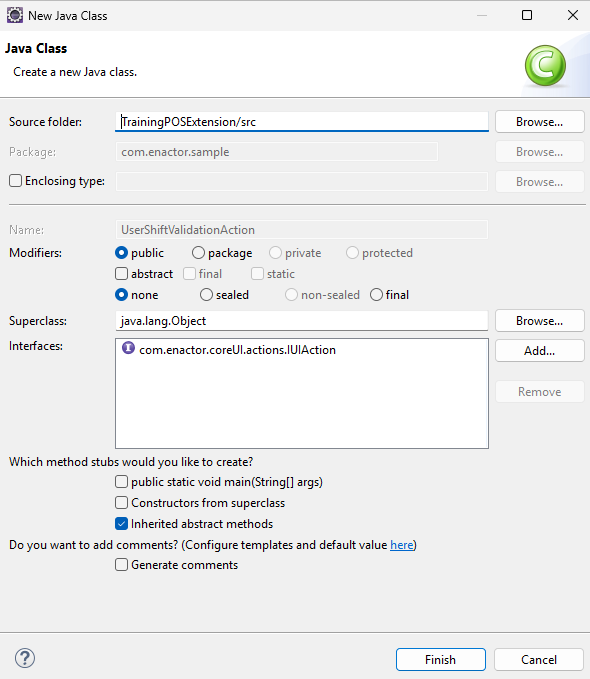
- Click Finish to generate the Action.
You can now implement the generated Action and add your own custom logic as required.
In this example, when a user attempts to log in, the system validates both the user ID and the current time:
- All users, except 000102 (e.g., 000101), are allowed to log in at any time without restrictions.
- User 000102 is only allowed to log in between 2:00 PM and 5:00 PM.
If the user attempts to log in within the allowed time range, the login is successful. Otherwise, the login fails, and the system uses the configured shift start time and shift end time (allowedStartTime and allowedEndTime) to display an appropriate message indicating the user's permitted shift period.
package com.enactor.sample;

import com.enactor.core.application.process.ApplicationProcessDataType;
import com.enactor.core.application.process.ApplicationProcessException;
import com.enactor.core.application.process.IApplicationProcessData;
import com.enactor.core.application.process.IApplicationProcessOutcome;
import com.enactor.coreUI.actions.IUIAction;
import com.enactor.coreUI.actions.UIActionFunctions;
import com.enactor.coreUI.processes.CoreUIOutcomes;
import com.enactor.coreUI.annotations.Input;
import com.enactor.coreUI.annotations.Inputs;
import com.enactor.coreUI.annotations.Outcomes;
import com.enactor.coreUI.annotations.Output;
import com.enactor.coreUI.annotations.Outputs;
import java.time.LocalTime;
import java.time.format.DateTimeFormatter;

import java.util.Calendar;
import java.util.HashMap;
import java.util.Map;

@Inputs({ @Input(name = "enactor.signOn.UserId", type = java.lang.String.class, required = true) })
@Outputs({ @Output(name = "allowedStartTime", type = java.lang.String.class),
		@Output(name = "allowedEndTime", type = java.lang.String.class) })
@Outcomes({ "Success", "Fail" })
public class UserShiftValidationAction implements IUIAction {

	private static final long serialVersionUID = 1L;

	public static final ApplicationProcessDataType ALLOWED_START_DATA = new ApplicationProcessDataType(
			"allowedStartTime", String.class.getName());
	public static final ApplicationProcessDataType ALLOWED_END_DATA = new ApplicationProcessDataType("allowedEndTime",
			String.class.getName());

	private static final Map<String, int[]> USER_SHIFTS = new HashMap<>();

	static {
		// This hard-coded restriction be further enhanced later by externalizing the
		// configuration (e.g., using a configuration file or database) to make the
		// solution more flexible and maintainable.
		USER_SHIFTS.put("000102", new int[] { 14, 17 });
	}

	@Override
	public IApplicationProcessOutcome execute(IApplicationProcessData inputData, IApplicationProcessData outputData)
			throws ApplicationProcessException {

		String userId = UIActionFunctions.getRequiredDataItem(inputData, "enactor.signOn.UserId");

		if (USER_SHIFTS.containsKey(userId)) {
			int[] shift = USER_SHIFTS.get(userId);
			int start = shift[0];
			int end = shift[1];

			Calendar calendar = Calendar.getInstance();
			int hour = calendar.get(Calendar.HOUR_OF_DAY);

			outputData.setData(ALLOWED_START_DATA, formatHour(start));
			outputData.setData(ALLOWED_END_DATA, formatHour(end));

			// SUCCESS case
			if (hour >= start && hour < end) {
				return CoreUIOutcomes.SUCCESS_OUTCOME;
			}

			return CoreUIOutcomes.FAIL_OUTCOME;
		}

		return CoreUIOutcomes.SUCCESS_OUTCOME;
	}

	public static String formatHour(int hour) {
		DateTimeFormatter formatter = DateTimeFormatter.ofPattern("h:mm a");
		return LocalTime.of(hour, 0).format(formatter);
	}
}
-
Then, Go to the Run -> Run Configuration -> Maven Build and select MVN Install (TrainingPOSExtension) and click Run.
-
After successfull build go to Run -> Run Configuration -> Java Application and select Training React POS and click Run.
Make sure that the TrainingPOSExtension project is added under the Dependencies tab in the ClassPath Entries of the Training React POS Java application launcher.
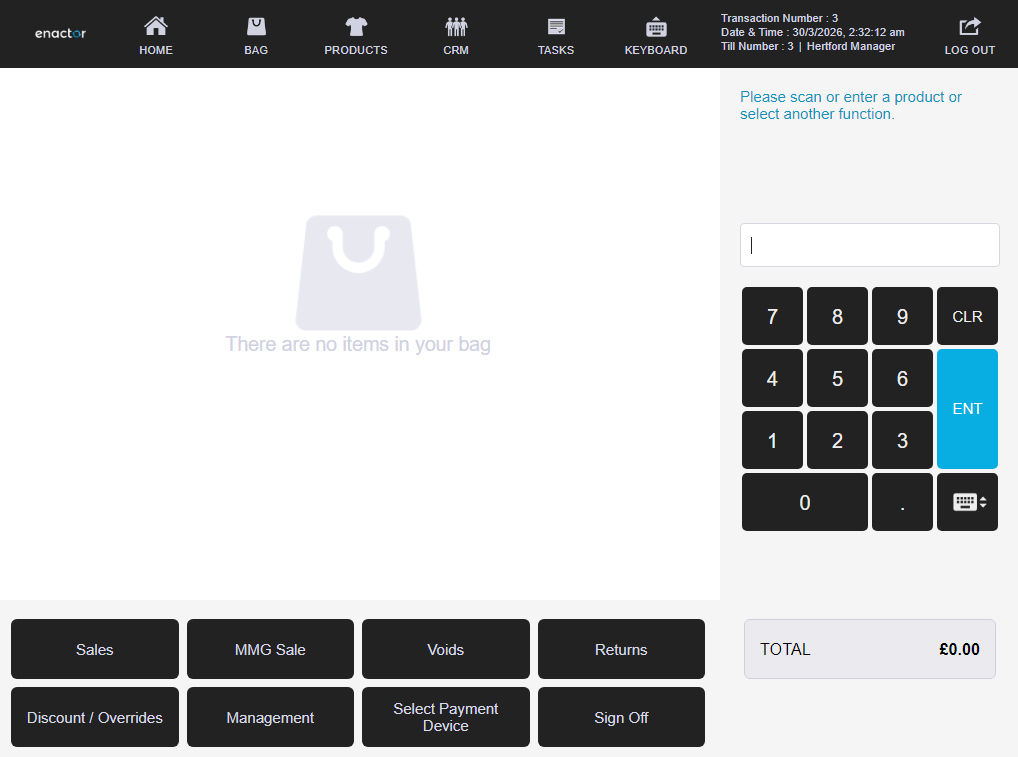
If user 000102 attempts to log in to the POS outside their allowed shift, a popup will be displayed. When the user clicks OK, they will be redirected back to the sign-on page.
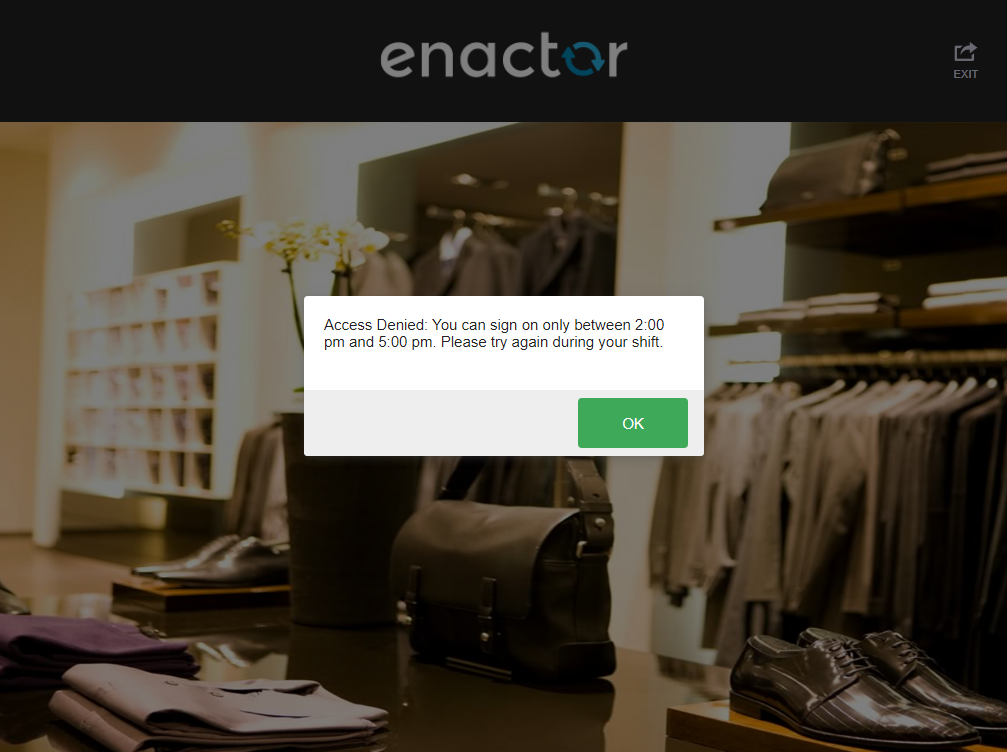
When the 000101 user logs into the POS at any time, they will be navigated directly to the basket page.