React Extension Development with Web POS
Overview
This guide walks through the workflow for developing a React UI Extension against a running Web POS instance. By the end you will learn how to develop a react screen with the ability to reflect the changes with a simple browser reload.
What You Will Learn
- How to connect the Web POS to a UI Extension project running in development mode
- How the watch-and-preview dev script works and how to reflect changes in the Web POS
- How to configure the server so process and Java changes in the extension are picked up without restarting the Web POS
Pre-requisites
- Web POS is Setup
- Training POS Extension is Generated
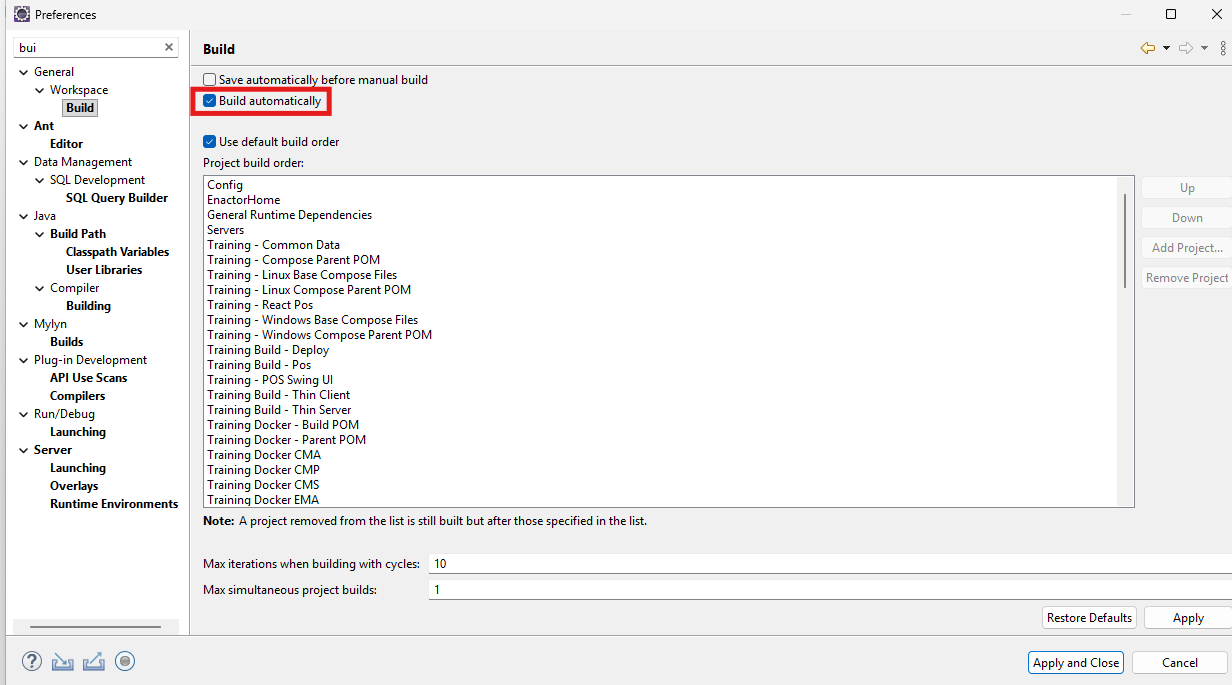
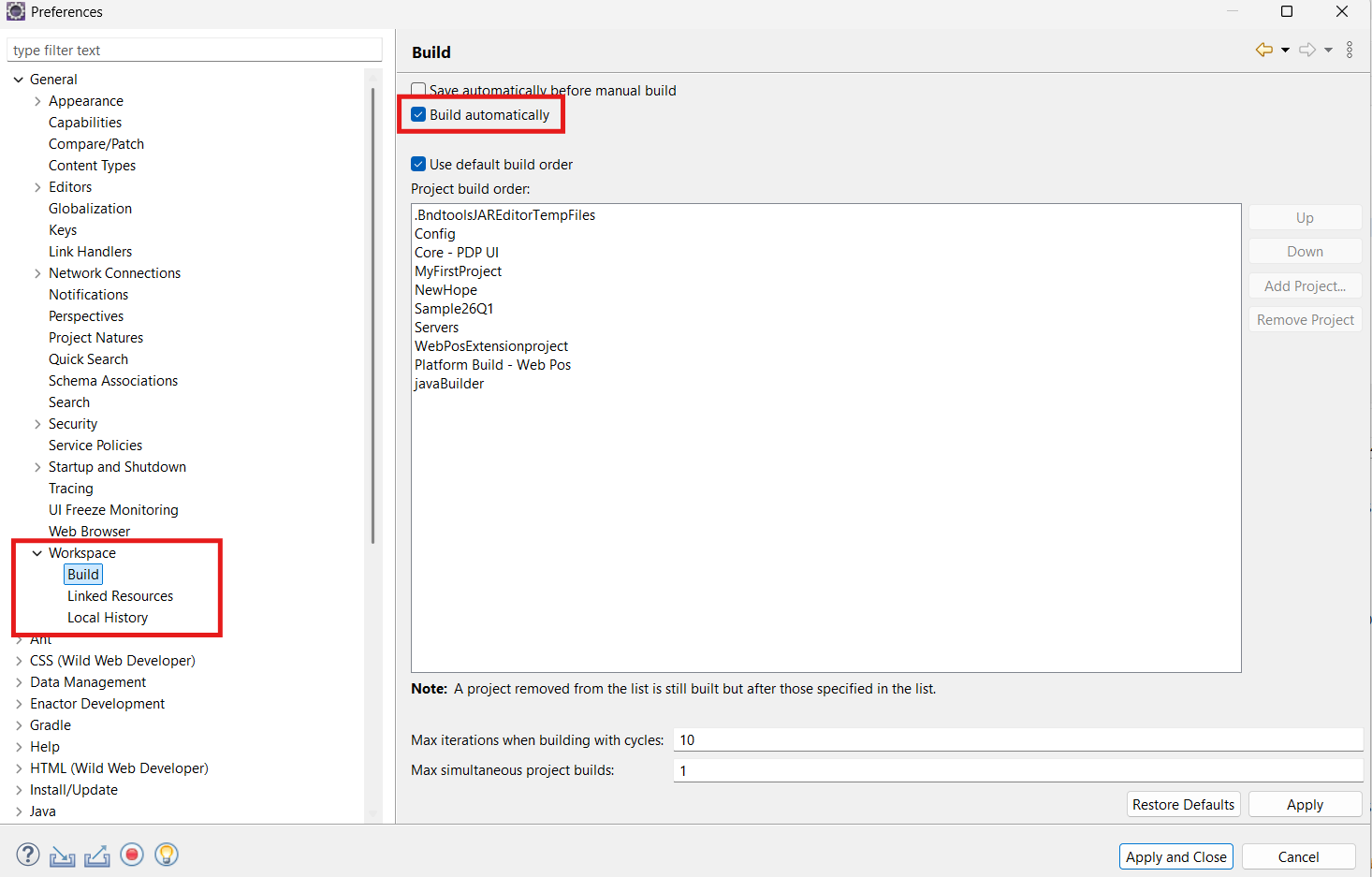
- Build Automatically is enabled in Eclipse -- select Project menu and confirm Build Automatically is checked
- Ensure that VS Code is set as the preferred editor for .js and .jsx files in Eclipse if you prefer VS Code for js development.
-
Open File Associations
-
Navigate to Window -> Preferences.
-
Select General -> Editors -> File Associations.

-
-
Add the File Extensions
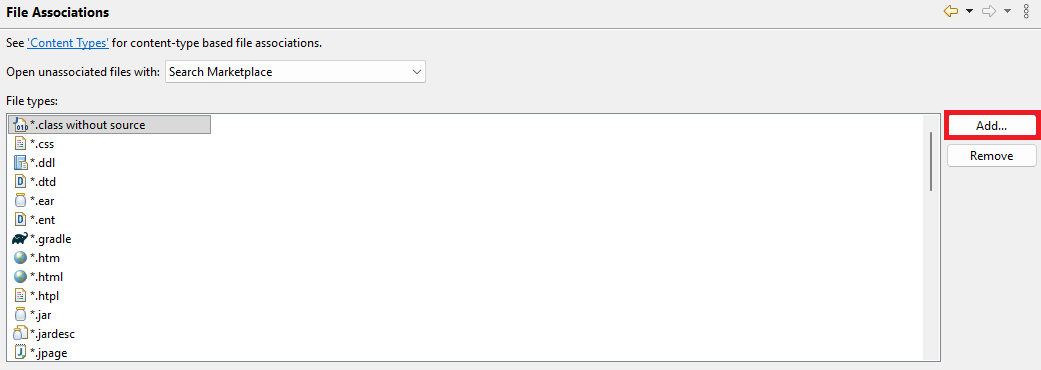
- If .jsx or .js is not already listed under File types, Click the Add... button next to the file types list.
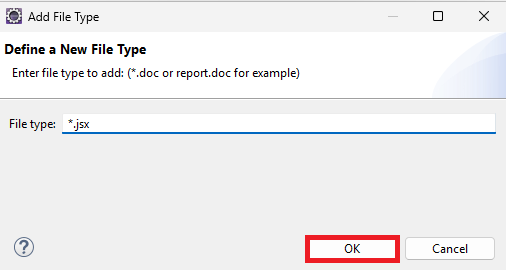
- Type _.jsx (or _.js if needed) and click OK.
-
Link Visual Studio Code
-
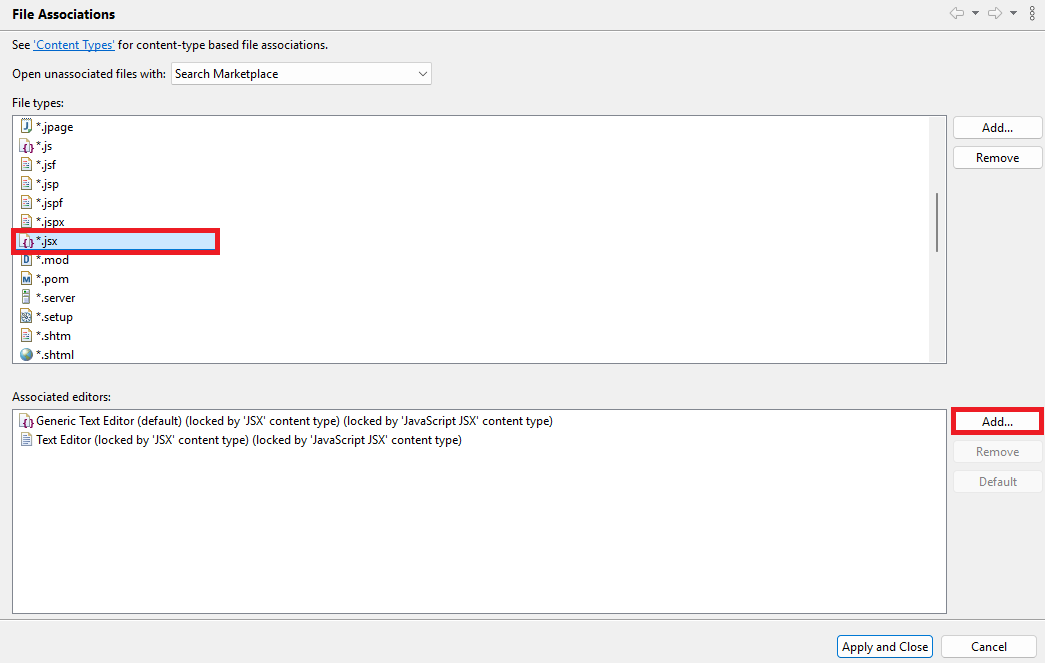
Select _.jsx (or _.js) from the file types list.
-
Click the Add... button next to the Associated editors list.
- Select the External programs radio button.
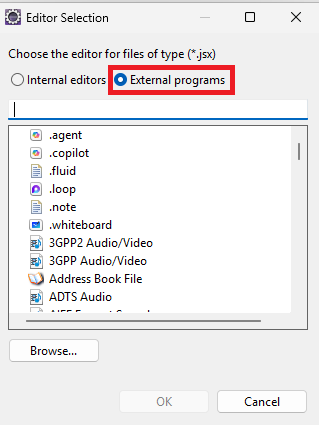
- Type
codein the search bar and find Visual Studio Code from the list.
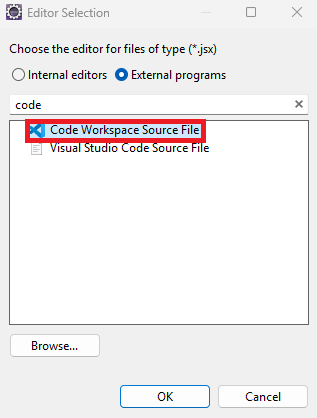
-
Click OK.
-
Select Visual Studio Code from the associated editors list.
-
Click the Default button on the right.
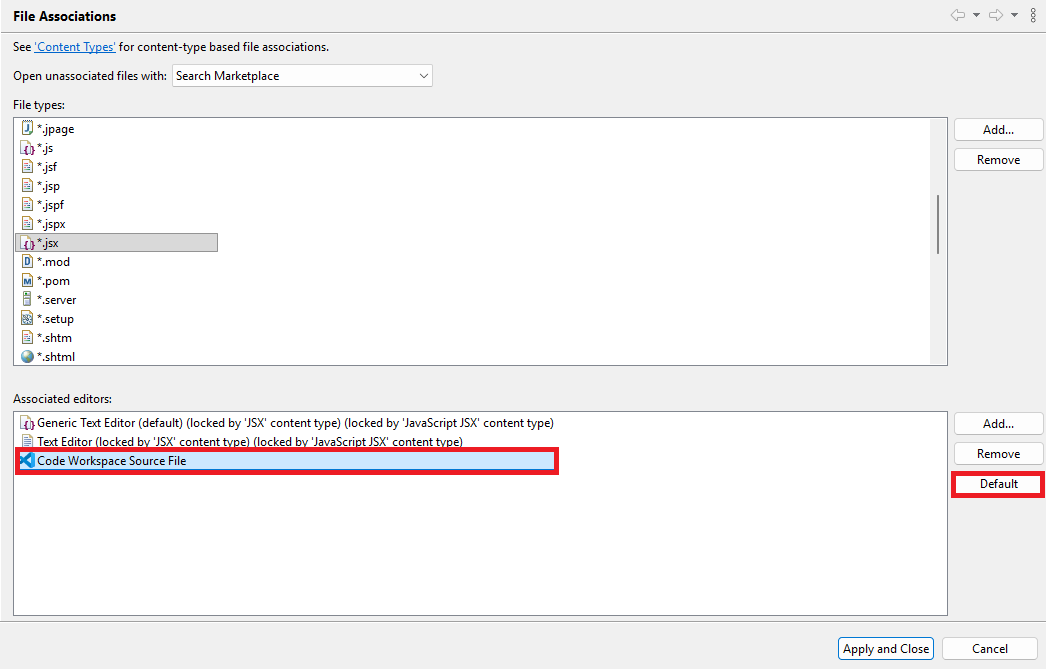
- Finally, click Apply and Close
-
-
Update POS Extension to run in Dev Mode
By default, the package.xml file is configured to load the extension from a local FILE path. For development against a running dev server, this must be changed to a URL source.
Open the package.xml file in your extension project.
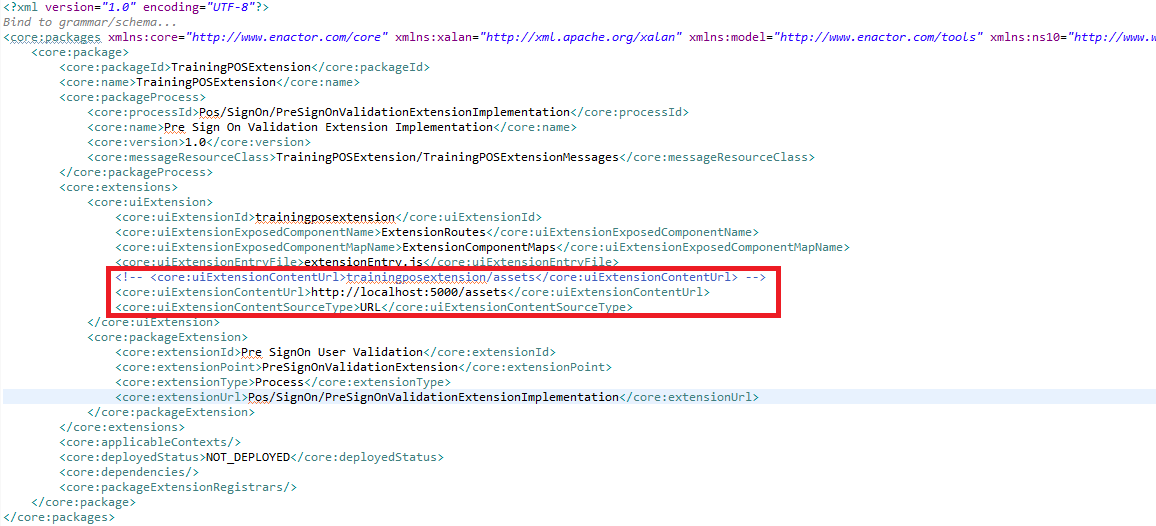
Locate the source configuration entry and change the source type from FILE to URL.
<core:uiExtensionContentSourceType>URL</core:uiExtensionContentSourceType>
Uncomment the following line and update the port to match your local development server (default is 5000). Then, comment out the existing core:uiExtensionContentUrl value.
<!-- Comment this line -->
<!-- <core:uiExtensionContentUrl>trainingposextension/assets</core:uiExtensionContentUrl> -->

<!-- Uncomment and update port if needed -->
<core:uiExtensionContentUrl>http://localhost:5000/assets</core:uiExtensionContentUrl>
Save the file.
Add the POS Extension Dependency to Web POS
The Web POS must include the extension project as a dependency to the Web POS inside the pom.xml file.
open the Training - WebPos project pom.xml file and add the extension project as a dependency.
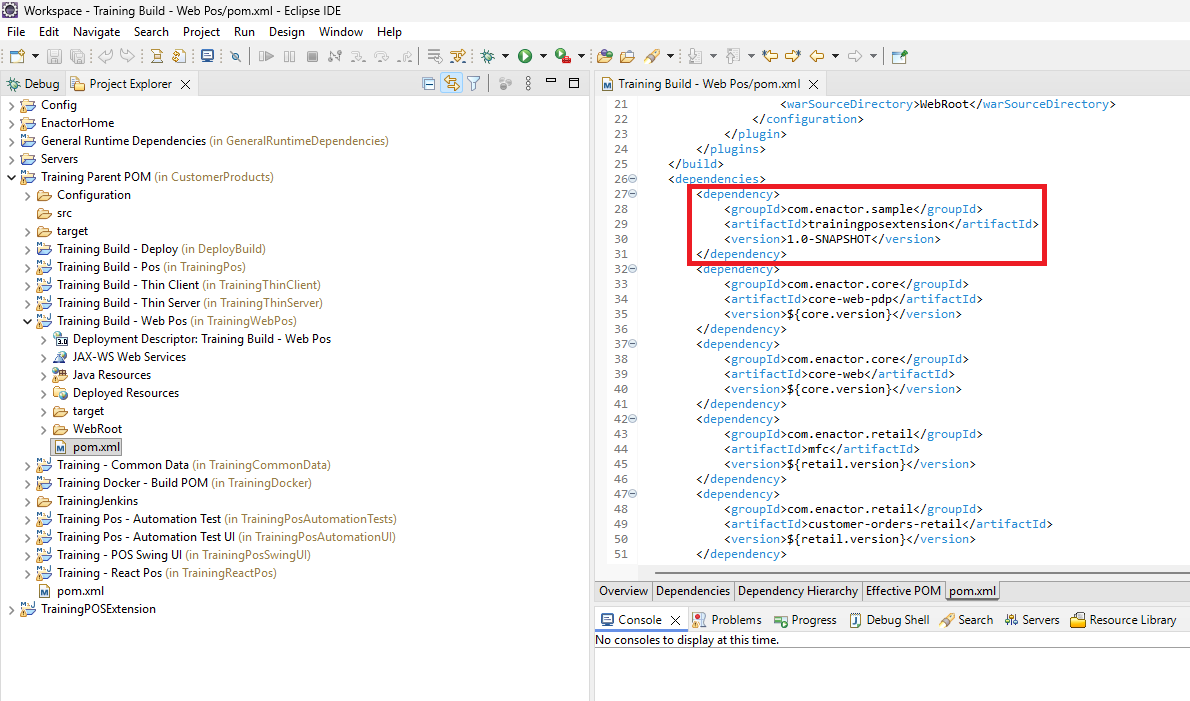
Save the changes.
Configure Hot Reloading for Process and Java Changes
The dev server covers your React sources. Process and Java changes in the extension project are picked up by a running Web POS as well, but only once the server and the project are configured for it. Without this, every process or Java edit costs you a server restart.
Configure all of the following before you start the Web POS.
Confirm Build Automatically is enabled
The workspace must be building as you save. This is already listed under Pre-requisites above; you can also confirm it in Window -> Preferences -> General -> Workspace -> Build, where Build automatically should be ticked.
Serve modules without publishing
Open the Tomcat server editor for the Web POS server and, under Server Options, tick Serve modules without publishing.
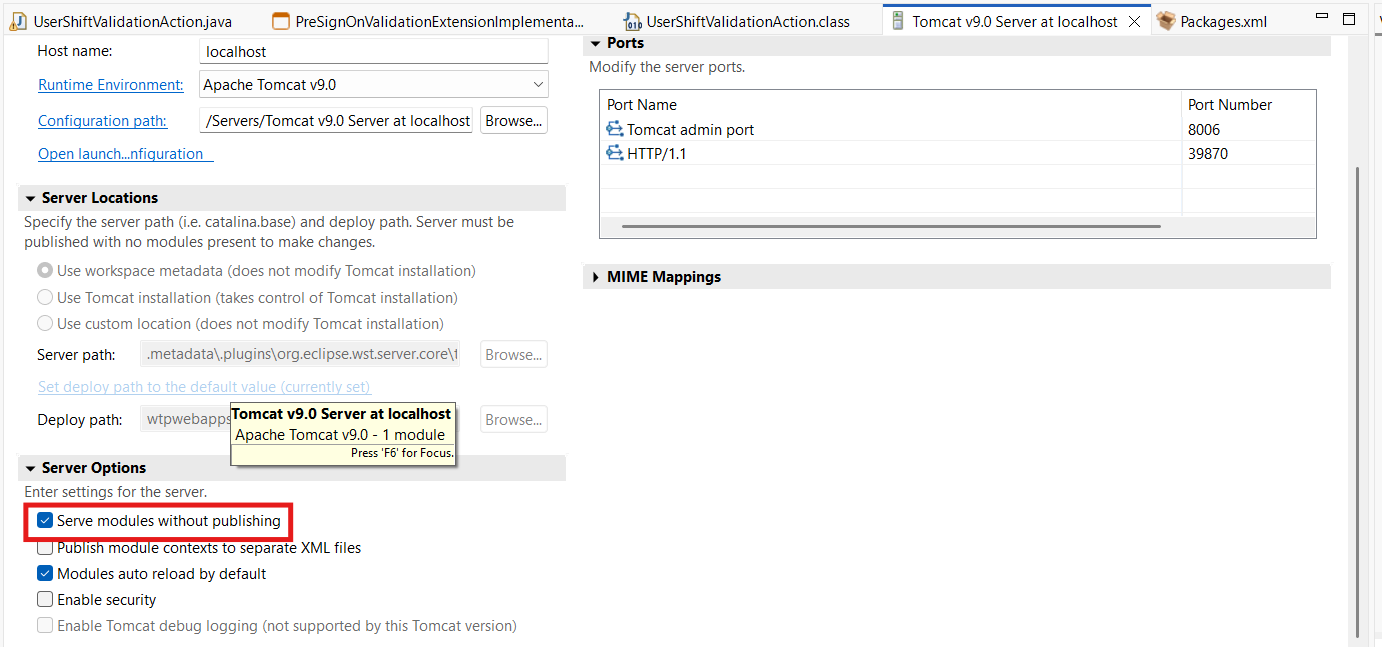
With this option on, the server serves the extension project's modules straight from the workspace rather than from a published copy, so process changes in the extension are loaded without restarting the web server.
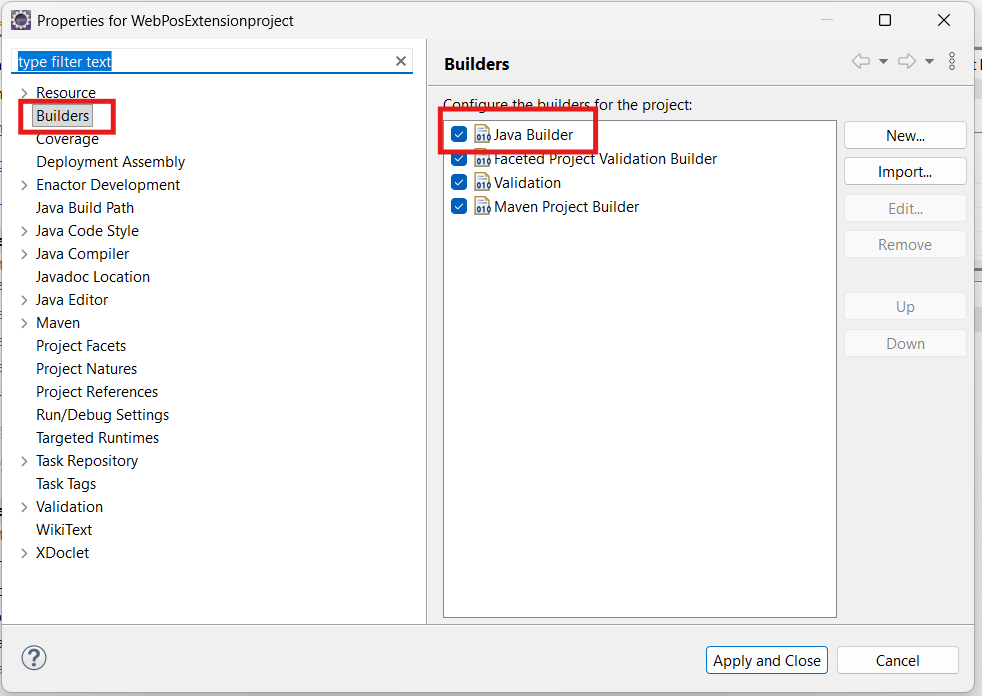
Add a Java Builder to the extension project
For Java changes to be compiled as you save them, the extension project must have a Java builder configured. Right-click the extension project and select Properties -> Builders, then confirm Java Builder is listed and ticked.
Disable automatic reloading on the server
In the same server editor, find the Web Modules section, select the Web POS module and click Edit... to disable auto reloading. The Auto Reload column should then read Disabled.
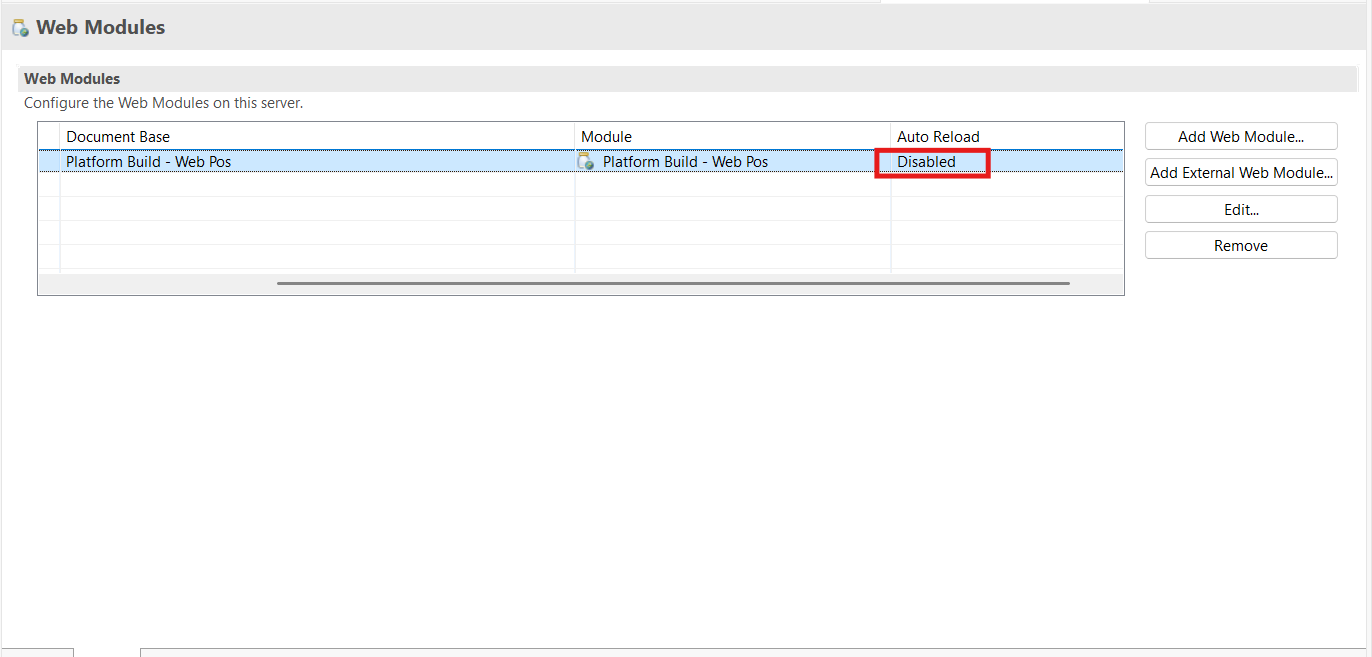
Leave auto reload enabled and every Java change triggers a server reload. That reload can interfere with the background services running inside Tomcat and crash the web application, producing errors like the following:
INFO: Illegal access: this web application instance has been stopped already.
Could not load [com.enactor.coreUI.actions.UILogMessageAction].

java.lang.IllegalStateException: Illegal access: this web application instance has been
stopped already. Could not load [com.enactor.coreUI.actions.UILogMessageAction].
    at org.apache.catalina.loader.WebappClassLoaderBase.checkStateForResourceLoading(WebappClassLoaderBase.java:1385)
    at org.apache.catalina.loader.WebappClassLoaderBase.checkStateForClassLoading(WebappClassLoaderBase.java:1373)
    at org.apache.catalina.loader.WebappClassLoaderBase.loadClass(WebappClassLoaderBase.java:1226)
    at com.enactor.core.utilities.ClassFactory.resolveClass(ClassFactory.java:46)
    at com.enactor.coreUI.factories.UIProcessFactory.getActionForDefinition(UIProcessFactory.java:194)
    at com.enactor.coreUI.processes.UIProcess.executeAction(UIProcess.java:1351)
    at com.enactor.coreUI.processes.UIProcessRunner.startProcess(UIProcessRunner.java:180)
    at com.enactor.coreUI.actions.BackgroundProcessRunner.run(BackgroundProcessRunner.java:94)
Disabling auto reload is what keeps the running application stable while you edit Java code.
Run the Web POS in Debug mode
Java changes are applied to the running server through hot code replace, which is only available when the server is launched in Debug mode. Start the Web POS as described in the next section, using Debug rather than Run.
With these four things in place, process and Java changes made in the extension project are picked up by the running Web POS without a restart.
Start the Web POS
Launch the Web POS Tomcat server from Eclipse.
Select Run menu -> Run Configurations
Expand the Apache Tomcat group and select WebPos
Click Run... button
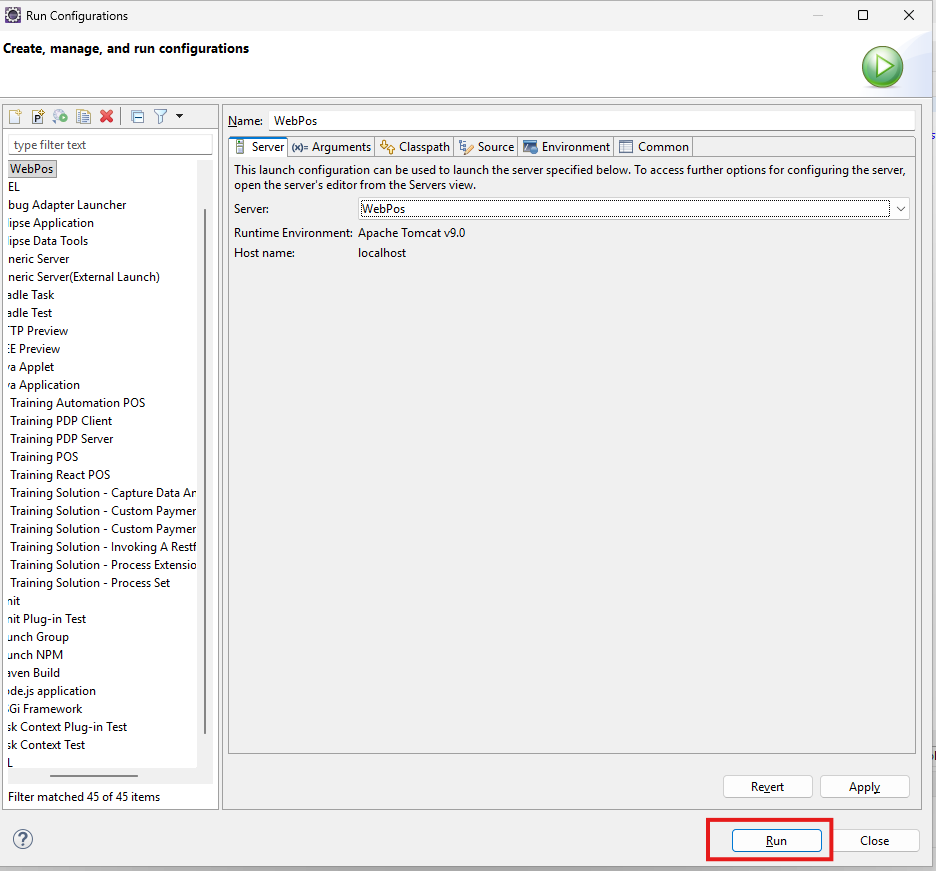
If you configured hot reloading above, launch the server in Debug mode instead — select
Run menu -> Debug Configurations, expand Apache Tomcat, select WebPos and click
Debug. Java hot code replace only works against a server started in debug mode.
( This will take a few minutes to launch )
Once started, confirm the Web POS is accessible in the browser through http://localhost:39870/WebPos/HTMLPosVite/index.html
Use webpos1@0001.enactor as the Device Id and submit.
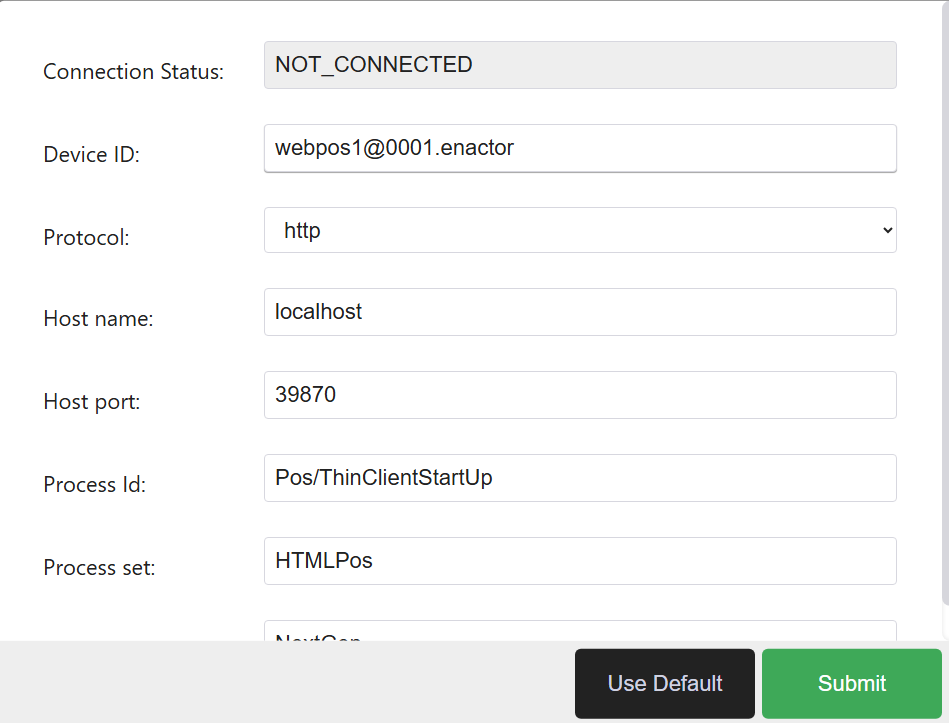
Start the Extension Dev Server
The extension should run in Dev Mode.
Right Click on trainingposextension folder inside src-js/packages folder of the POS Extension and Click Run Node Dev Sever to run the Extension in Dev Mode
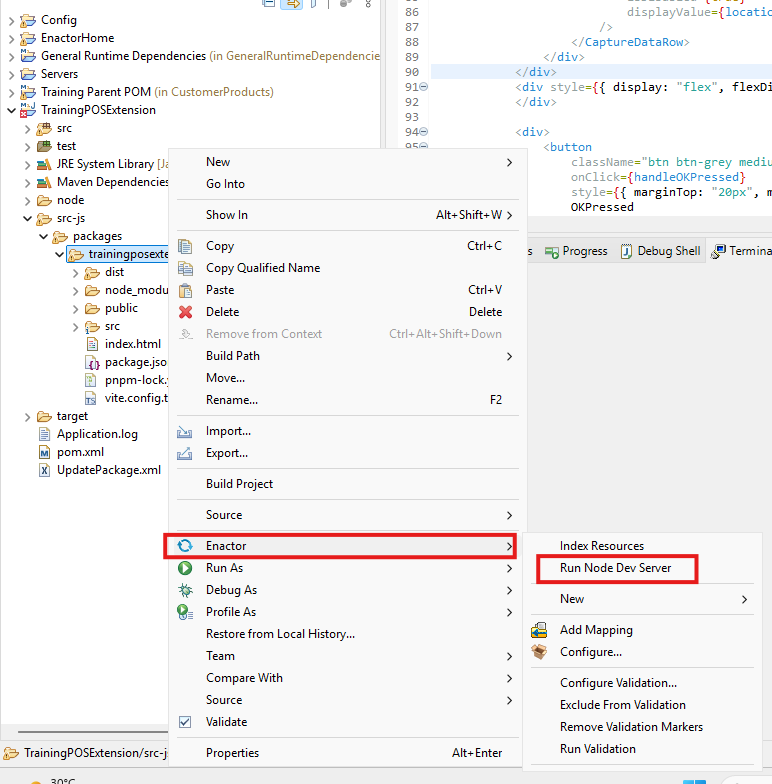
Click Run Node Dev Server...button
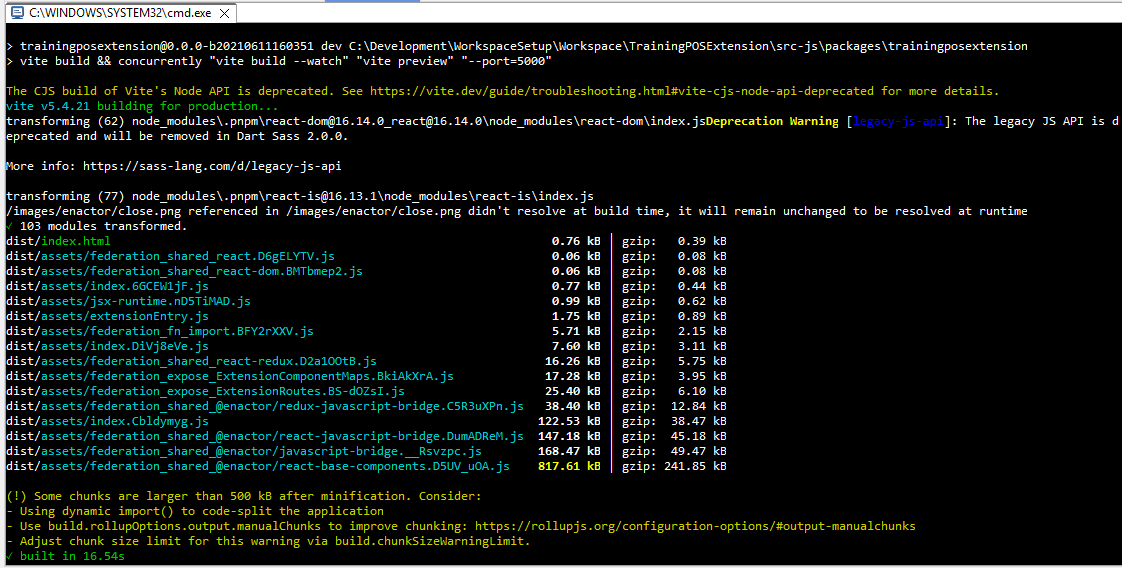
Confirm that the terminal output shows the dev server is running and listening.
Live Reload After Code Changes
With the dev server running, any changes you make to your extension's source files are automatically rebuilt. After the build, simply reload the browser to see the updated output in Web POS .No server restart is needed.
At this stage, the extension project does not yet include any React components. The next tutorial will guide you through creating your first custom React component and observing live changes directly in Web POS.