Create a POS Extension
Overview
This tutorial will guide you how to create a POS extension.
In this exercise, we will implement the PreTenderingExtension extension found in the Tendering_1.0.xml process with a new Application Process containing a new prompt.
What you will learn
- How to create a POS Extension
- How to build a POS Extension
Pre-requisites
- Ensure the Training Workspace is set up and the Training React POS is up and operational. (Refer Training Workspace Setup)
Exercises
Import POS Extension Project
- Download POS Extension Project zip : POSExtension.zip and extract it.
- Open your Eclipse Development Workspace and Import the POS Extension Project as a Maven Project to the workspace
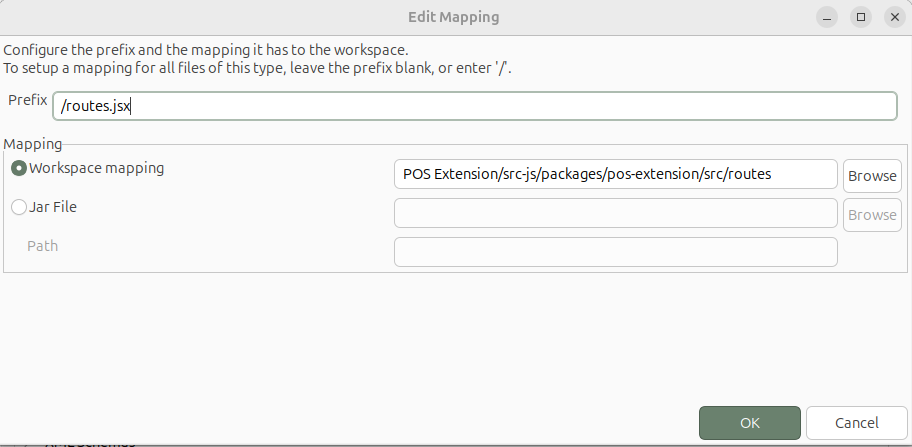
- In your workspace click, Window -> Pereferences -> Enactor Development -> Resource Mappings and Add New React Mapping. Browse
POS Extension/src-js/packages/pos-extension/src/routesas mapping and/routes.jsxas prefix.
Locate the Extension Point you want to extend
Assume we are going to extend PreTenderingExtensionPoint
- Go to Resource Library Search view (Window -> Show View -> Resource Library) and In the search box, type
ext:PreTenderingExtensionPointand press Enter.
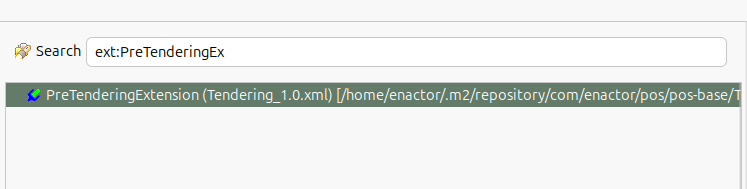
- Double-click on the extension to open the process (In POS - Base project) and double click again on the extension to locate the extension point on the editor.
Create the New Extension Process
-
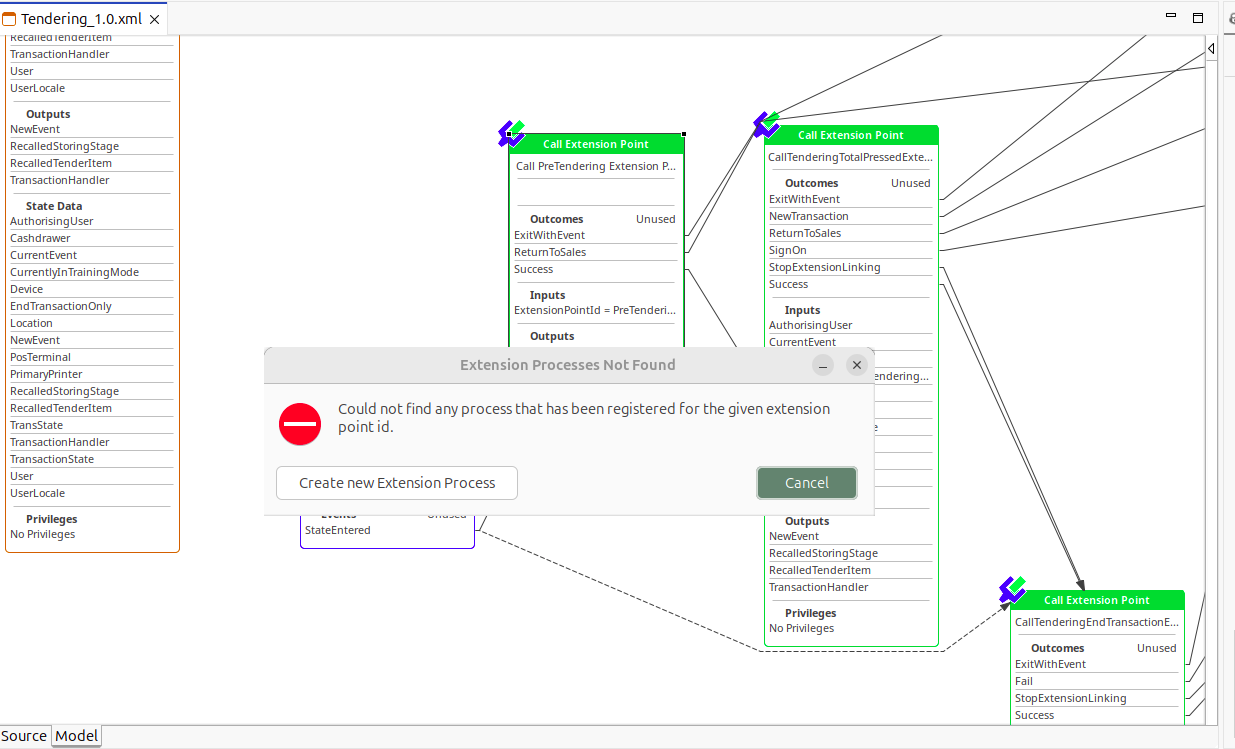
Double-click on the extension point to open the Extension Point Wizard.
-
Click the
Create New Extension Processbutton.
-
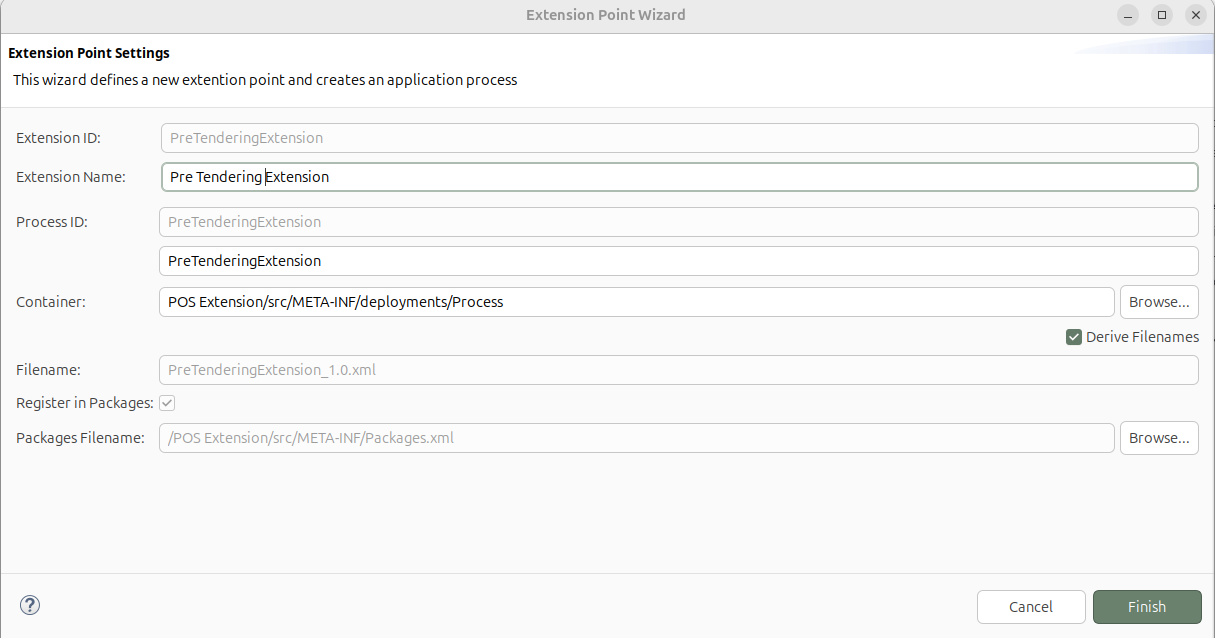
In the Extension Point Settings window,
-
Extension Id will be auto populated.
-
Fill Extension Name as
Pre Tendering Extension. -
Enter Process ID as
PreTenderingExtension. -
Browse and select the container location as
POS Extension/src/META-INF/deployments/Process -
Ensure the Derive Filenames checkbox is checked.
-
Register in Packages should be checked.
-
Browse and select the Packages Filename as
POS Extension/src/META-INF/Packages.xml -
Click Finish.
-
Verify Application Process Registration
-
Confirm that a new Application Process named PreTenderingExtension_1.0.xml has been created under,
POS Extension/src/META-INF/deployments/Process -
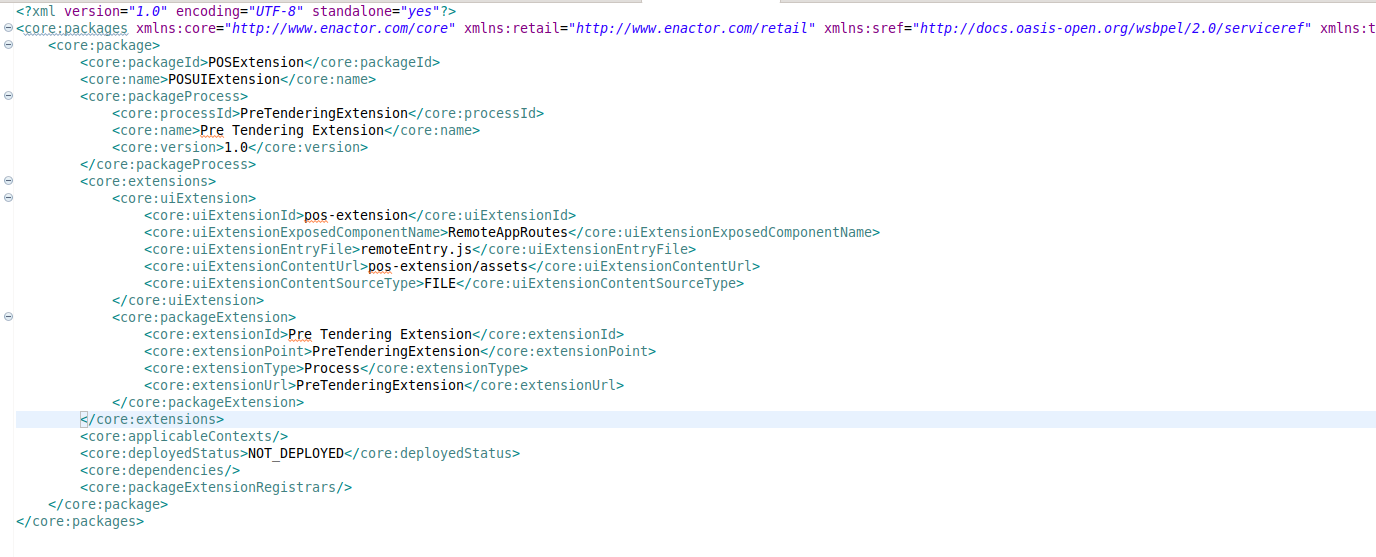
Confirm that the Packages.xml has following entries
Implement PreTenderingExtension Application Process
-
Open
PreTenderingExtension_.0.xmlusing the Application Process Editor -
Open the Palette view by navigating to Window -> Show View -> Other, then search for and open Palette.
-
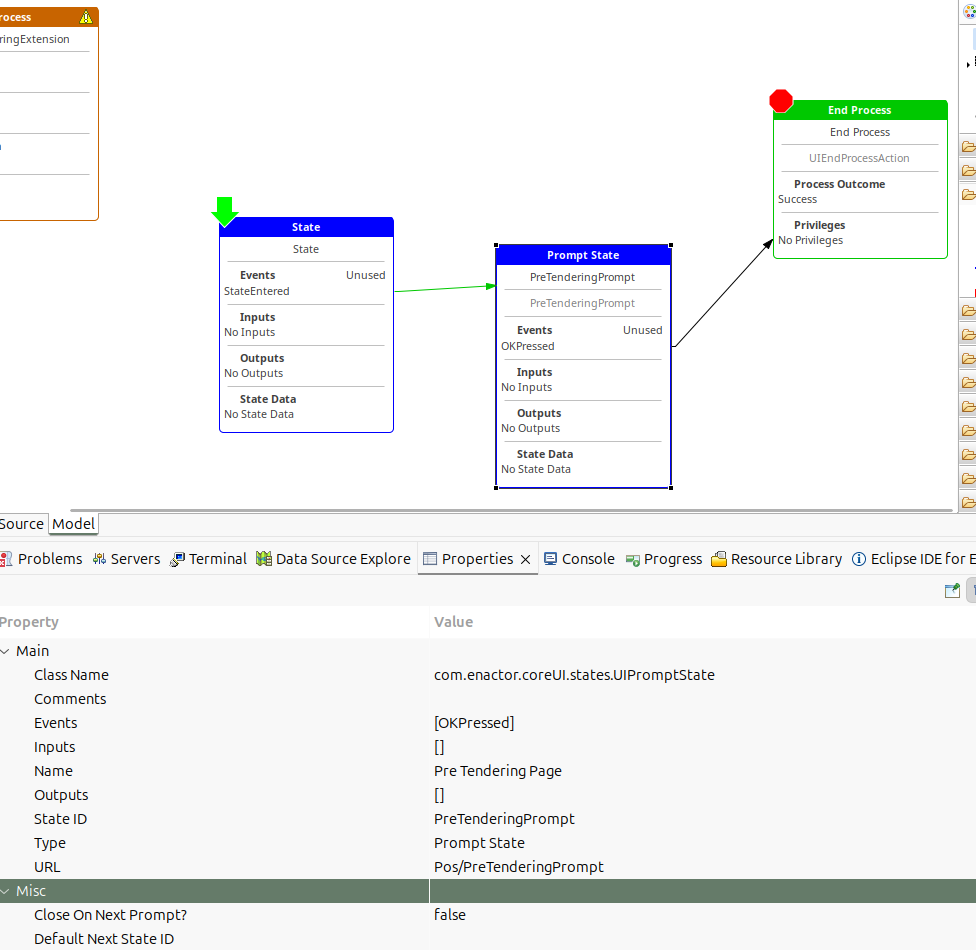
From the Palette, under
States, drag State and Prompt State onto the process, then underActions, drag End Process onto the process. -
Set Prompt State Properties and make sure final Application Process is as below.
Implement the React Prompt
-
Double-click on the prompt state or Right Click -> Enactorr -> Create React Component to create the new React Page (For more details refer Create a New React Component)
-
New React Component Wizard will Open
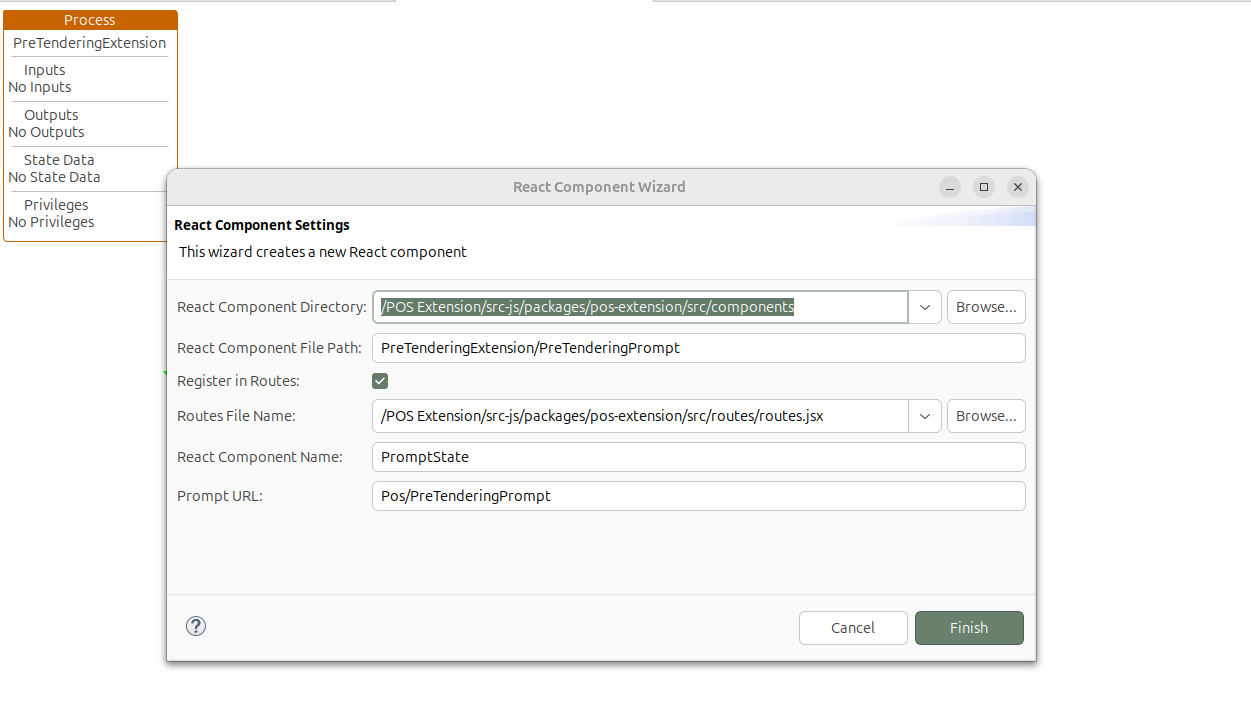
- Default Values will be Populated and click Finish to generate a Default React Page
Build the POS Extension
- After completing the above steps, build the POS Extension by Navigating to project root dirctory and executing the following command.
mvn clean install -Pnpm-maven-integration - Once the build is complete, POS Extension JAR file will be located in the project's target directory.