Override React Components
Overview
To learn how to override Enactor components
What You Will Learn
- How to find the components in the React Dev Tools
- How to override a simple component
- How to override a complex component
Pre-requisites
- To have an understanding of React and Redux.
- Web Pos is setup
- Training POS Extension is Generated
Instructions
Viewing the Enactor Components
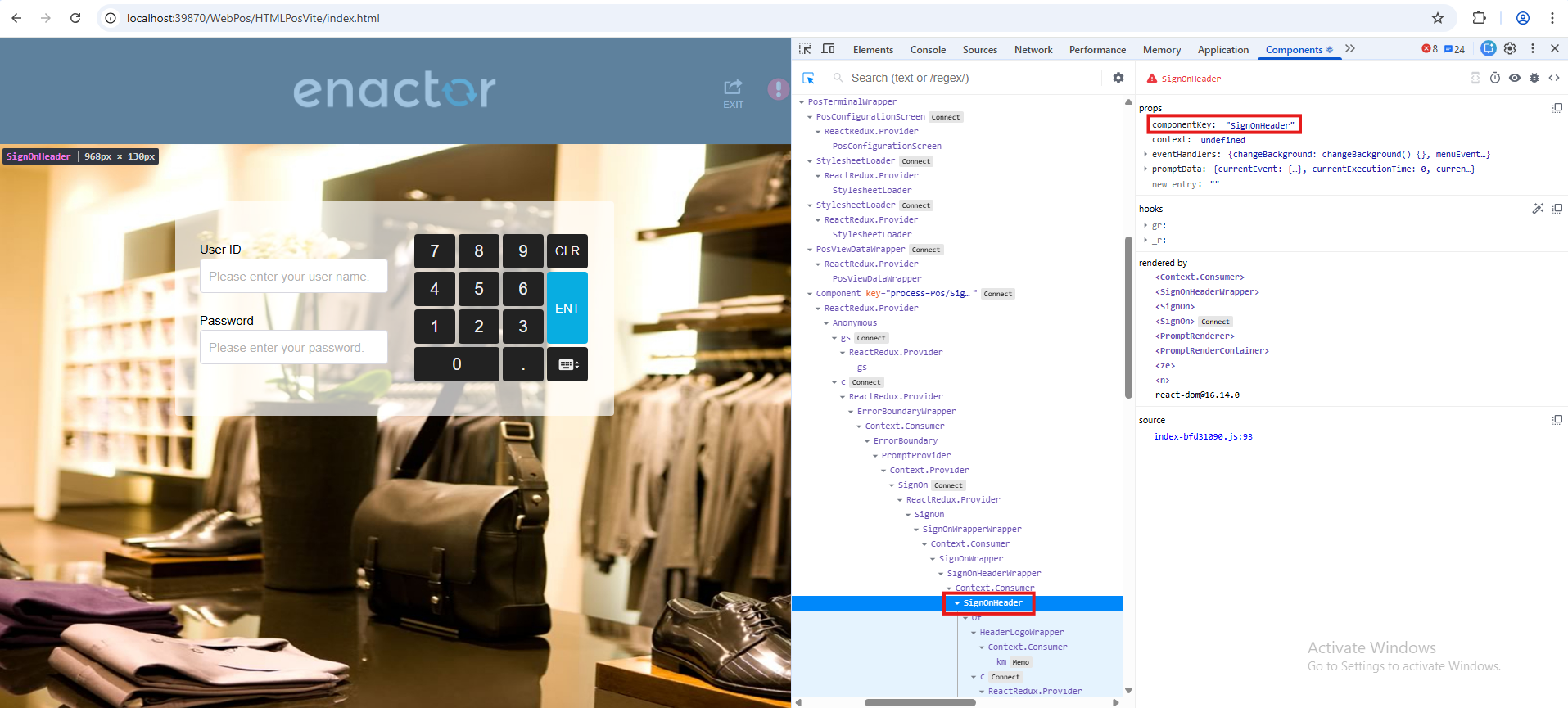
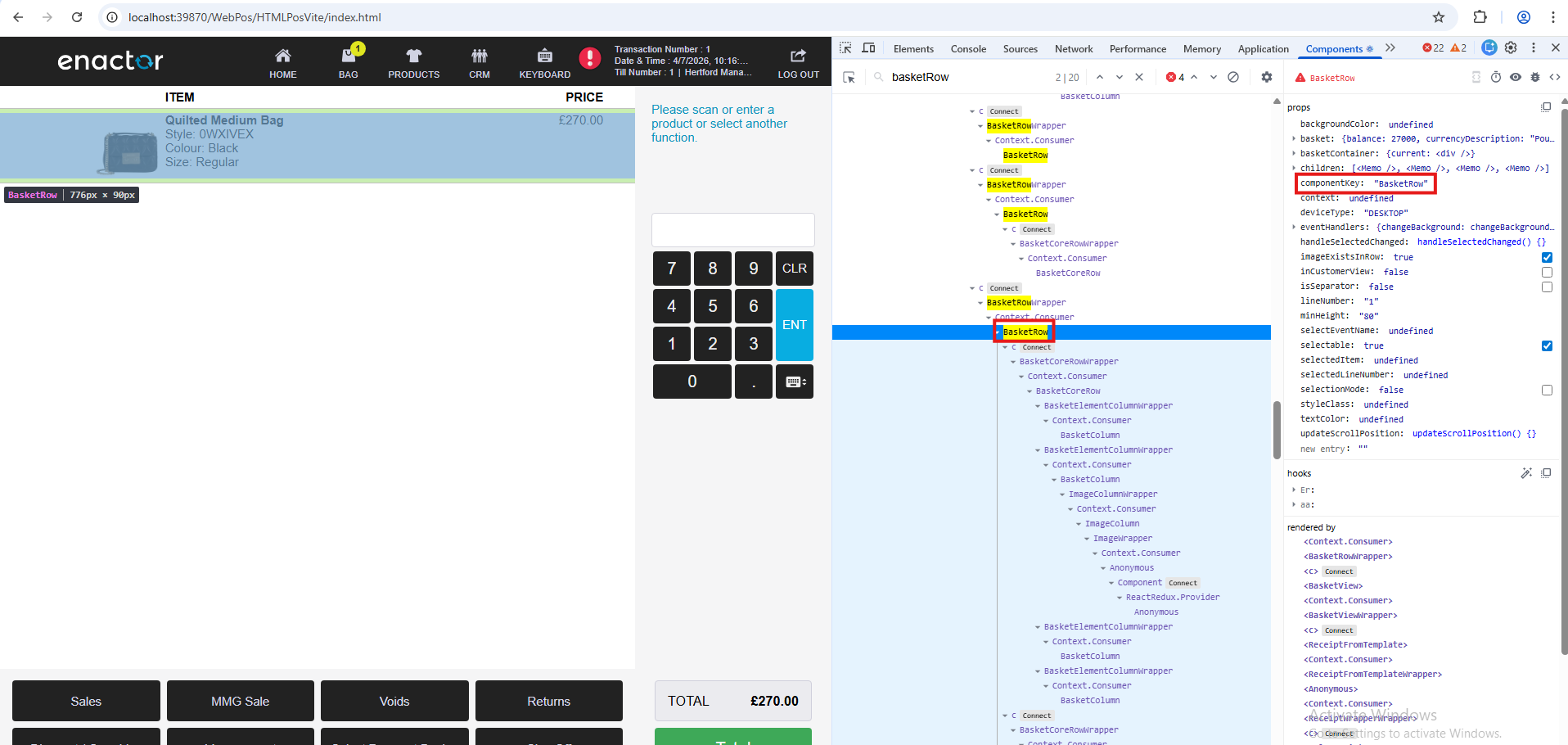
Every overriding component has a componentKey property. The Enactor UI framework will use this key when rendering the component to see if the component has been overridden or not. If the component has been overridden, the new component will be rendered. Otherwise the original component will be rendered.
To find out the componentKey, you will need to use the React Developer Tools installed
Steps:
- Open the WebPos and connect
- Open your browser's developer tools
- Go to the Components tab
- Click the selector inside the Components tab
- Click on the component on the page e.g. The logo on the Sign On header
- Look at the props section back in the Component and find 'componentKey'.
Overriding a simple Component
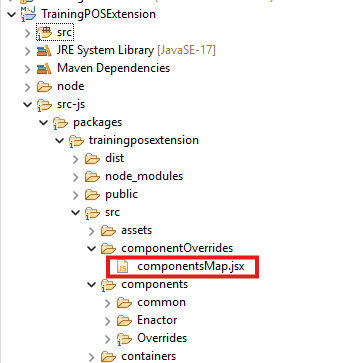
Overriding components are done inside *componentsMap.js. This map is a key/value, where the key is the componentKey and the value is a React component.
This is located in \TrainingPOSExtension\src-js\packages\trainingposextension\src\componentOverrides\
Example:
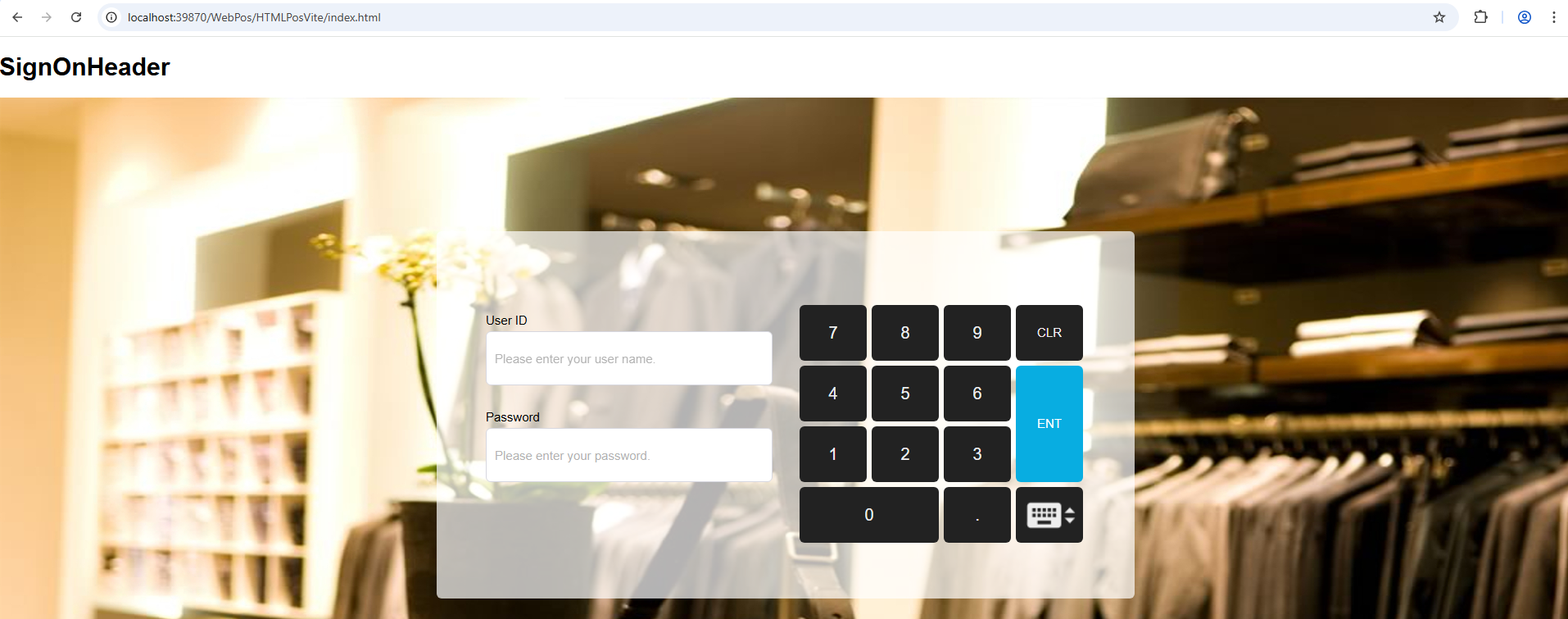
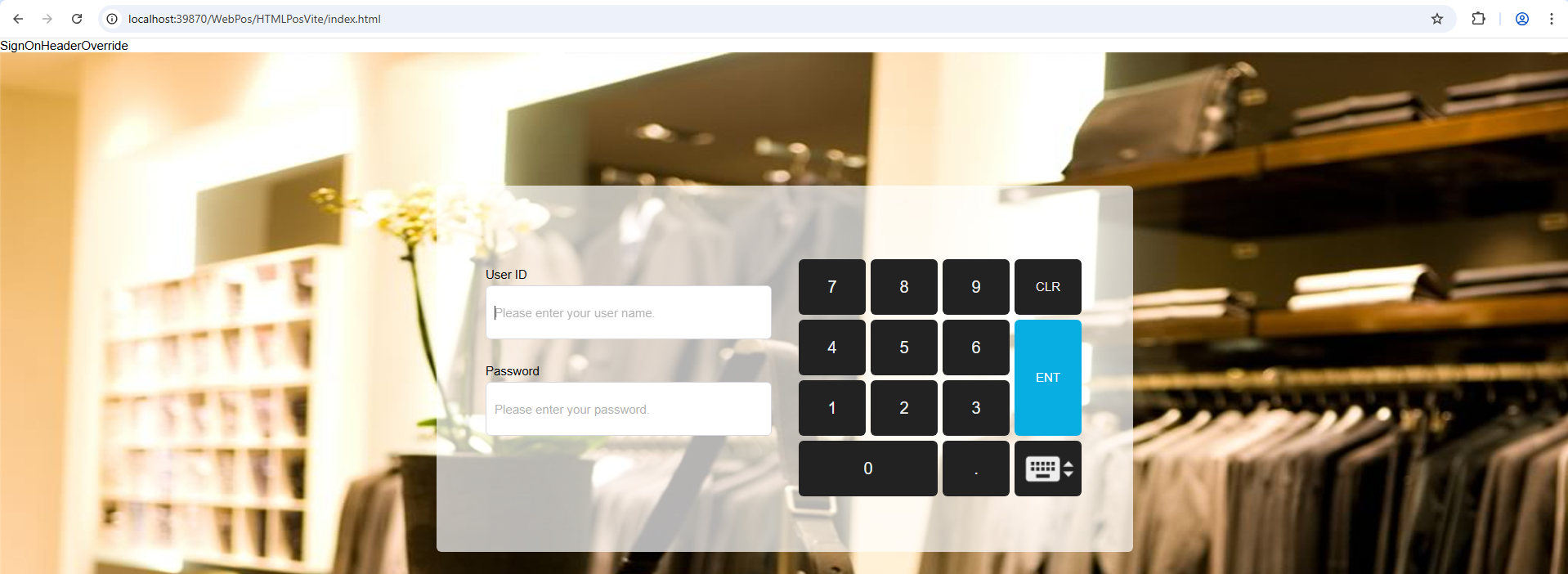
The ComponentsMap has overridden the SignOnHeader with an anonymous function which returns SignOnHeader in a <h1> tag
const componentsMap = {
	  SignOnHeader: () => {
	    return <h1>SignOnHeader</h1>;
	  },
};
Result:
Creating a React component
In TrainingPOSExtension\src-js\packages\trainingposextension\src\components\Overrides\ create the file SignOnHeaderOverride.jsx. with the following React code.
import React from "react";

const SignOnHeaderOverride = (props) => {
  return <header>SignOnHeaderOverride</header>;
};

export default SignOnHeaderOverride;
Then back in ComponentsMap.js, import the SignOnHeaderOverride component and update the component in the key/value pair.
Result
import SignOnHeaderOverride from "../components/Overrides/SignOnHeaderOverride"
const TrainingPosComponentsMap = {
  SignOnHeader: SignOnHeaderOverride,
};
//...
Overriding a complex component
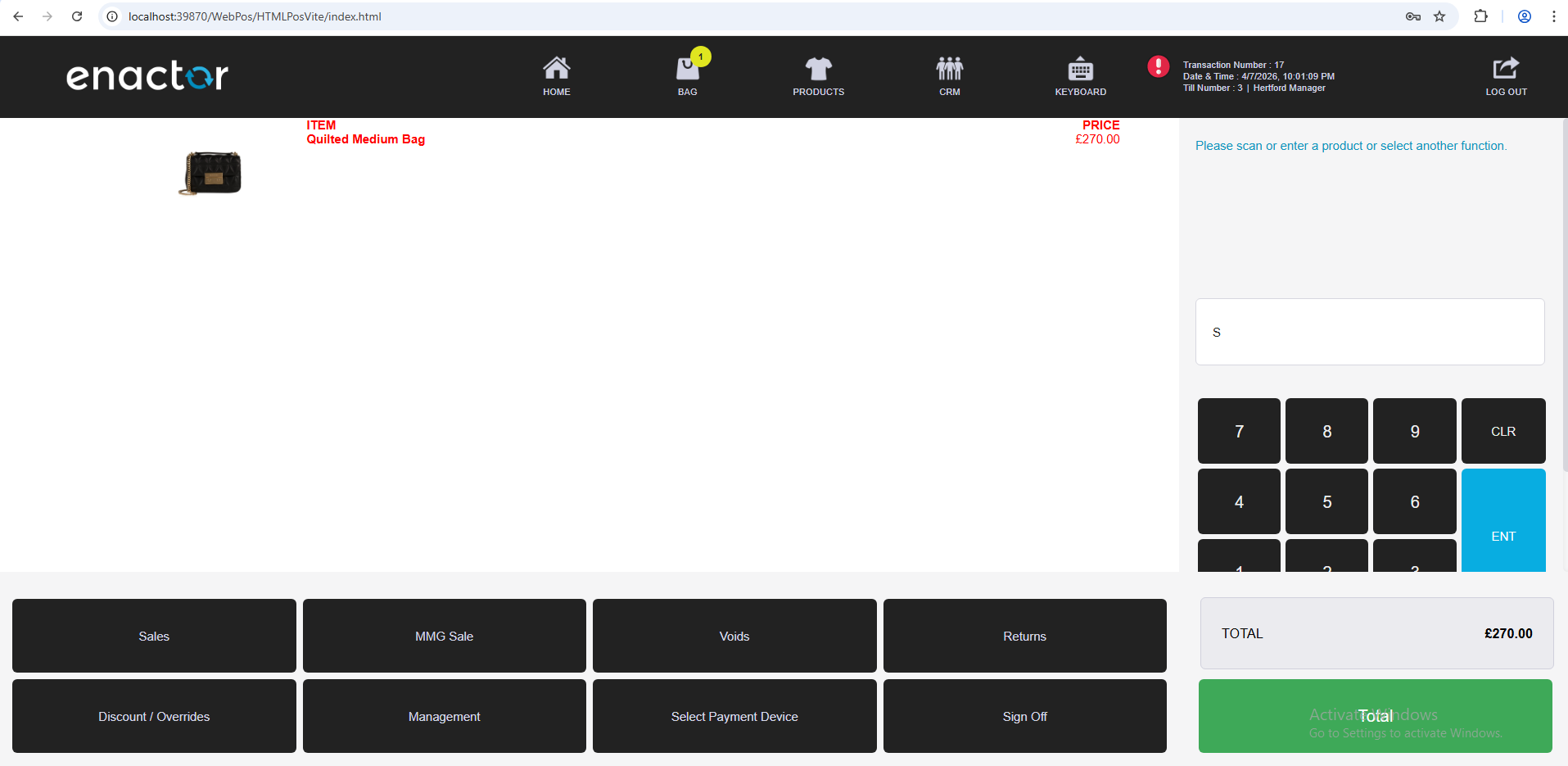
In this task we will override the BasketRow component. Start by logging into the WebPos and adding product 0WXIVEX to the basket.
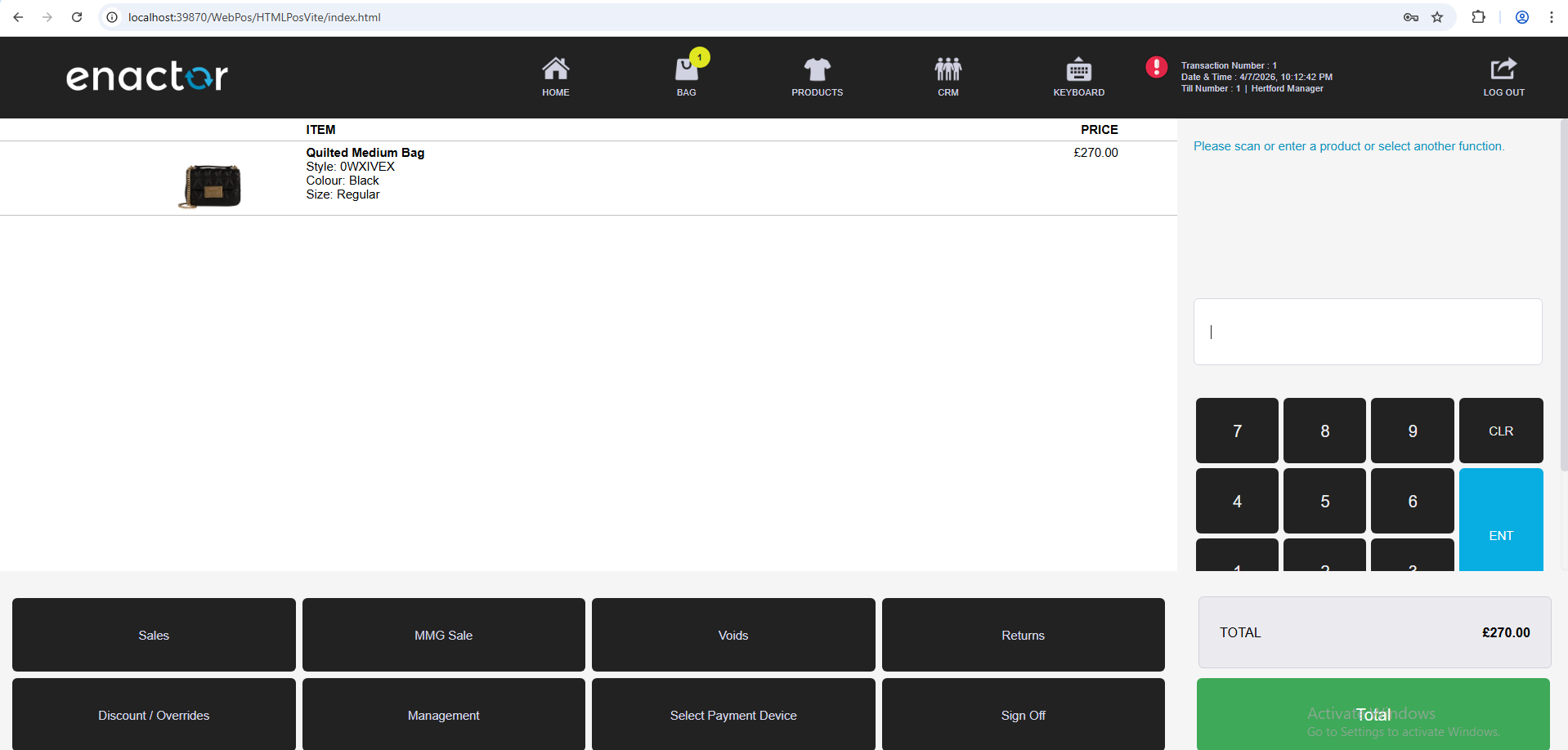
The BasketRow component represents a single row in the basket. Note that the ITEM PRICE header at the top is also rendered as a BasketRow, not just the product lines.

Use the React Developer Tools to find the componentKey for the BasketRow component, as described in the Viewing the Enactor Components section above.
In TrainingPOSExtension\src-js\packages\trainingposextension\src\components\Overrides\, create the file BasketRowOverride.jsx with the following React code.
This override extracts only the first child element from the row and renders it in red, to demonstrate how a component's children can be accessed and manipulated.
import React from 'react';

const BasketRowOverride = ({
  children,
}) => {
  const childrenElements = React.Children.toArray(...children);

  if (childrenElements.length <= 0) {
    return null;
  }

  const firstChildren = childElements[0];

  return (
    <div style={{ color: 'red' }}>
      {firstChild}
    </div>
  );
};

export default BasketRowOverride;
Then update *ComponentsMap.js to import and register the new component:
import SignOnHeaderOverride from "../components/Overrides/SignOnHeaderOverride"
import BasketRowOverride from "../components/Overrides/BasketRowOverride"

const componentsMap = {
  SignOnHeader: SignOnHeaderOverride,
  BasketRow: BasketRowOverride
};

export default componentsMap;
Refresh the browser after the build completes to load the overridden component